---
metadata:
  - name: generator
    content: Diplodoc Platform v5.63.0
alternate:
  - en/reports/report-operations
  - ru/reports/report-operations
  - href: en/reports/report-operations.md
    type: text/markdown
    title: Markdown version
csp:
  - script-src:
      - https://mc.yandex.ru
    img-src:
      - https://mc.yandex.ru
    connect-src:
      - https://mc.yandex.ru
      - wss://mc.yandex.ru
    child-src:
      - 'blob:'
      - https://mc.yandex.ru
    frame-src:
      - 'blob:'
      - https://mc.yandex.ru
    frame-ancestors:
      - 'blob:'
      - https://mc.yandex.ru
canonical: en/reports/report-operations.html
title: Working with a report
description: Follow this guide to learn how to work with a report.
vcsPath: en/reports/report-operations.md
---

# Working with a report

In this section, you will learn how to work with a report:

* [Creating a report](#create-report)
* [Adding report info](#report-add-description)
* [Adding, moving, or deleting pages](#report-pages)
* [Configuring widgets](#report-widget-settings)
* [Configuring a report](#report-settings)
* [Configuring selectors](#add-selector)
* [Configuring pages](#page-settings)
* [Sharing a link to a report](#link-on-report)
* [Configuring scaling](#scaling-settings)
* [Enabling preview](#report-preview)
* [Exporting a report](#report-export)

## Creating a report {#create-report}


You can create a new report within a workbook:

1. Open the [workbook](..//workbooks-collections/index.md) you want to create a report in.
1. In the top-right corner, click **Create** and select **Report**.
1. [Add pages](#report-pages) to your report.
1. [Add](#add-widget) the required [widgets](../dashboard/widget.md) to the pages.
1. [Configure your report](#report-settings) and its individual [pages](#page-settings).
1. In the top-right corner, click **Save**.
1. In the window that opens, enter a name for the report and click **Create**.


You can [export](#report-export) the report you created.

## Adding report info {#report-add-description}

To add report info:

1. Click <!-- diplodoc:svg ![image](../_assets/console-icons/circle-info.svg) --><svg xmlns="http://www.w3.org/2000/svg" width="16" height="16" fill="none" viewBox="0 0 16 16"><path fill="currentColor" fill-rule="evenodd" d="M8 13.5a5.5 5.5 0 1 0 0-11 5.5 5.5 0 0 0 0 11M8 15A7 7 0 1 0 8 1a7 7 0 0 0 0 14m1-9.5a1 1 0 1 1-2 0 1 1 0 0 1 2 0m-.25 3a.75.75 0 0 0-1.5 0V11a.75.75 0 0 0 1.5 0z" clip-rule="evenodd"/></svg> at the top of the screen.
1. Enter the information and click **Save**.

   {% cut "Adding report info" %}
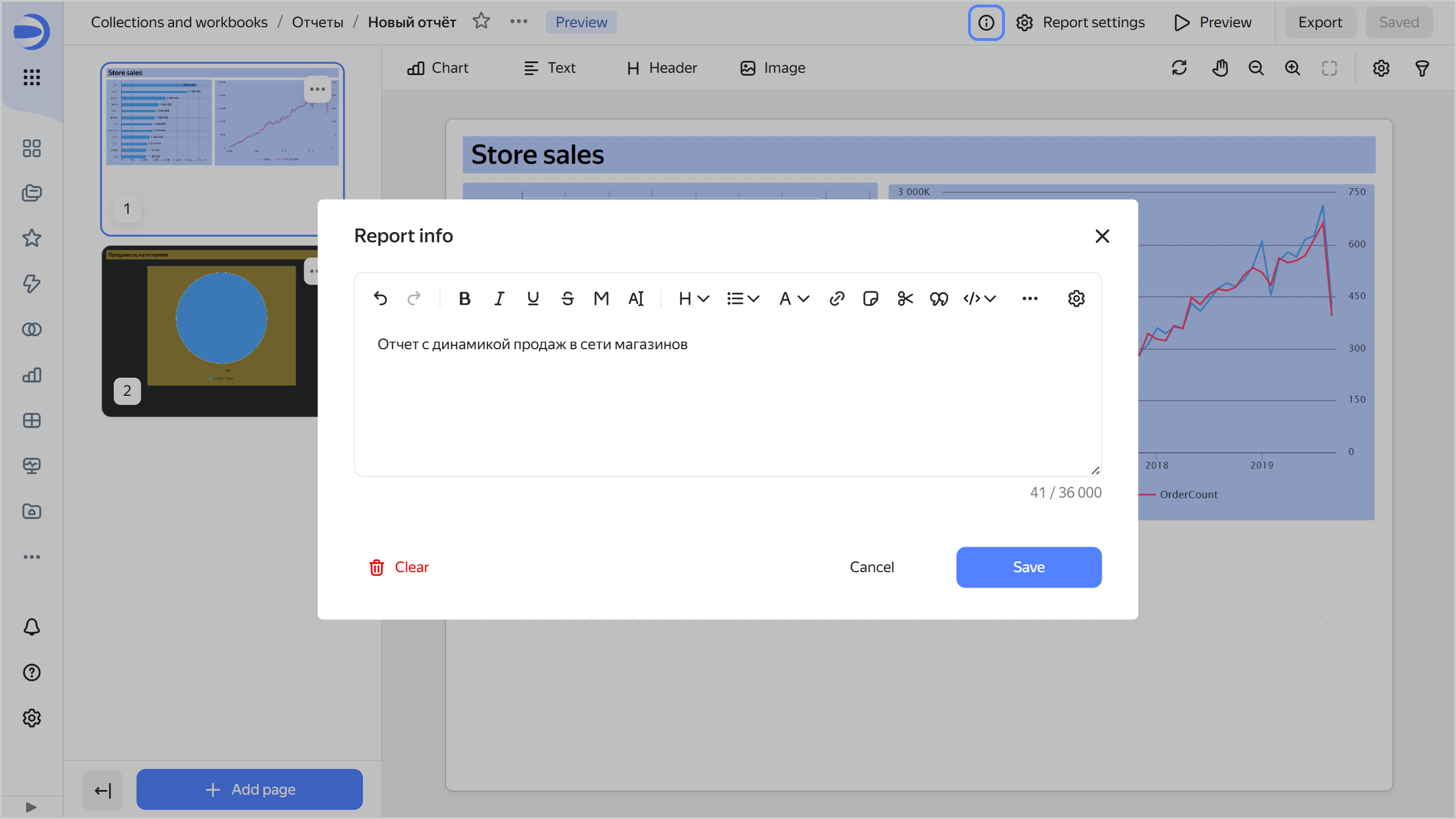
   ![add-description](../_assets/datalens/report/report-add-description.png)
   
   {% endcut %}

1. In the top-right corner, click **Save**.

Now all users will see the <!-- diplodoc:svg ![image](../_assets/console-icons/circle-info.svg) --><svg xmlns="http://www.w3.org/2000/svg" width="16" height="16" fill="none" viewBox="0 0 16 16"><path fill="currentColor" fill-rule="evenodd" d="M8 13.5a5.5 5.5 0 1 0 0-11 5.5 5.5 0 0 0 0 11M8 15A7 7 0 1 0 8 1a7 7 0 0 0 0 14m1-9.5a1 1 0 1 1-2 0 1 1 0 0 1 2 0m-.25 3a.75.75 0 0 0-1.5 0V11a.75.75 0 0 0 1.5 0z" clip-rule="evenodd"/></svg> icon in the top-right corner of the report. Clicking it will open the **Report info** window with the information.

{% cut "Viewing report info" %}
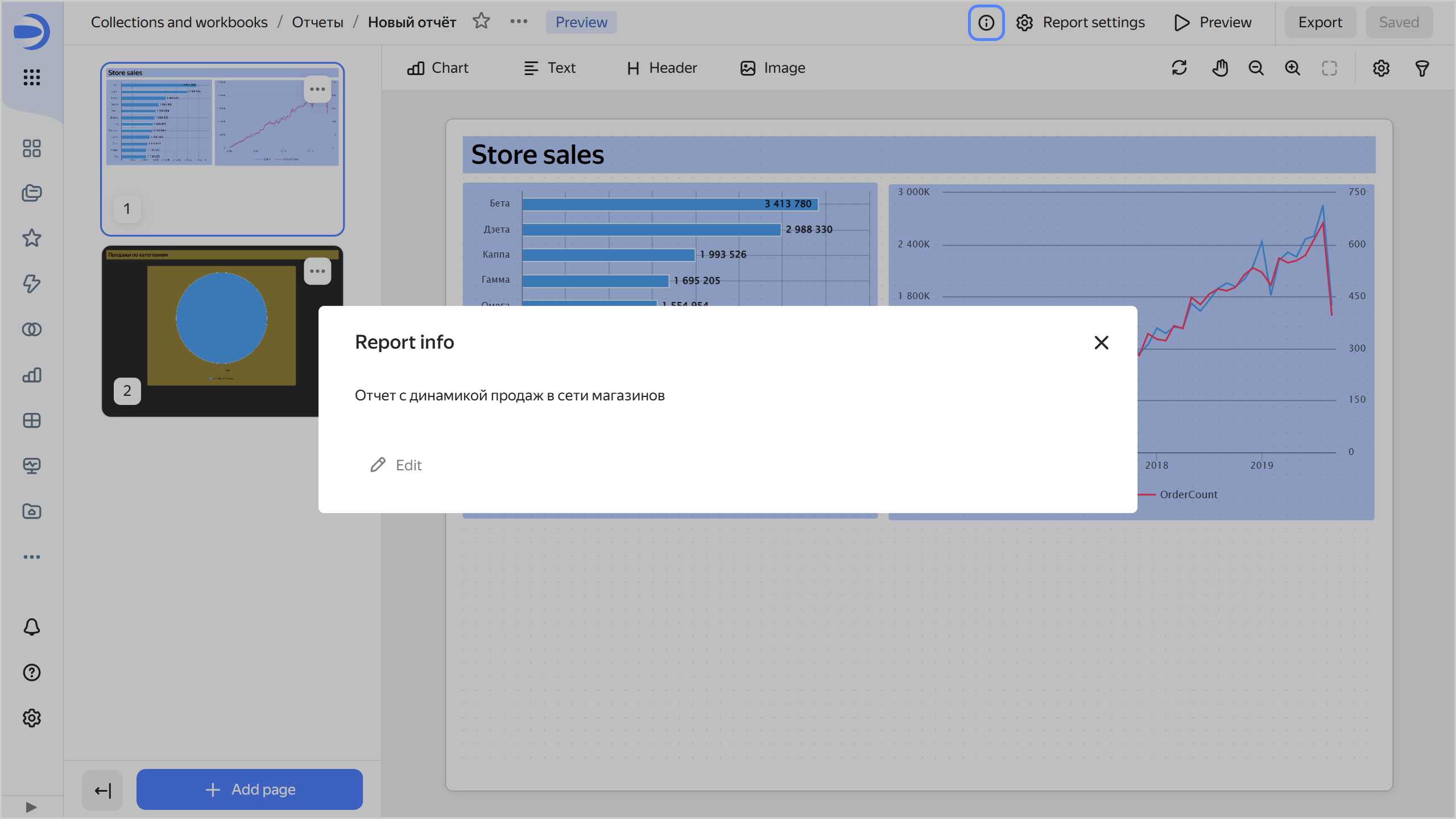
![description](../_assets/datalens/report/report-description.png)

{% endcut %}

To remove report info, save an empty field in the **Report info** window. Users will no longer see the <!-- diplodoc:svg ![image](../_assets/console-icons/circle-info.svg) --><svg xmlns="http://www.w3.org/2000/svg" width="16" height="16" fill="none" viewBox="0 0 16 16"><path fill="currentColor" fill-rule="evenodd" d="M8 13.5a5.5 5.5 0 1 0 0-11 5.5 5.5 0 0 0 0 11M8 15A7 7 0 1 0 8 1a7 7 0 0 0 0 14m1-9.5a1 1 0 1 1-2 0 1 1 0 0 1 2 0m-.25 3a.75.75 0 0 0-1.5 0V11a.75.75 0 0 0 1.5 0z" clip-rule="evenodd"/></svg> icon.

## Adding, moving, or deleting pages {#report-pages}

You can add multiple pages to a report, reorder, or delete them:

* To add a page, click <!-- diplodoc:svg ![image](../_assets/console-icons/plus.svg) --><svg xmlns="http://www.w3.org/2000/svg" width="16" height="16" fill="none" viewBox="0 0 16 16"><path fill="currentColor" fill-rule="evenodd" d="M8 1.75a.75.75 0 0 1 .75.75v4.75h4.75a.75.75 0 0 1 0 1.5H8.75v4.75a.75.75 0 0 1-1.5 0V8.75H2.5a.75.75 0 0 1 0-1.5h4.75V2.5A.75.75 0 0 1 8 1.75" clip-rule="evenodd"/></svg> **Add Page** at the bottom left.
* To duplicate a page, click the <!-- diplodoc:svg ![image](../_assets/console-icons/ellipsis.svg) --><svg xmlns="http://www.w3.org/2000/svg" width="16" height="16" fill="none" viewBox="0 0 16 16"><path fill="currentColor" fill-rule="evenodd" d="M3 9.5a1.5 1.5 0 1 0 0-3 1.5 1.5 0 0 0 0 3M9.5 8a1.5 1.5 0 1 1-3 0 1.5 1.5 0 0 1 3 0m5 0a1.5 1.5 0 1 1-3 0 1.5 1.5 0 0 1 3 0" clip-rule="evenodd"/></svg> icon next to the page in the preview area and select <!-- diplodoc:svg ![icon](../_assets/console-icons/copy.svg) --><svg xmlns="http://www.w3.org/2000/svg" width="16" height="16" fill="none" viewBox="0 0 16 16"><path fill="currentColor" fill-rule="evenodd" d="M12 2.5H8A1.5 1.5 0 0 0 6.5 4v1H8a3 3 0 0 1 3 3v1.5h1A1.5 1.5 0 0 0 13.5 8V4A1.5 1.5 0 0 0 12 2.5M11 11h1a3 3 0 0 0 3-3V4a3 3 0 0 0-3-3H8a3 3 0 0 0-3 3v1H4a3 3 0 0 0-3 3v4a3 3 0 0 0 3 3h4a3 3 0 0 0 3-3zM4 6.5h4A1.5 1.5 0 0 1 9.5 8v4A1.5 1.5 0 0 1 8 13.5H4A1.5 1.5 0 0 1 2.5 12V8A1.5 1.5 0 0 1 4 6.5" clip-rule="evenodd"/></svg> **Duplicate**.
* To change the order of pages, drag them to a new location using your mouse.
* To delete a page, in the preview area, click the <!-- diplodoc:svg ![image](../_assets/console-icons/ellipsis.svg) --><svg xmlns="http://www.w3.org/2000/svg" width="16" height="16" fill="none" viewBox="0 0 16 16"><path fill="currentColor" fill-rule="evenodd" d="M3 9.5a1.5 1.5 0 1 0 0-3 1.5 1.5 0 0 0 0 3M9.5 8a1.5 1.5 0 1 1-3 0 1.5 1.5 0 0 1 3 0m5 0a1.5 1.5 0 1 1-3 0 1.5 1.5 0 0 1 3 0" clip-rule="evenodd"/></svg> icon next the page and select <!-- diplodoc:svg ![icon](../_assets/console-icons/trash-bin.svg) --><svg xmlns="http://www.w3.org/2000/svg" width="16" height="16" fill="none" viewBox="0 0 16 16"><path fill="currentColor" fill-rule="evenodd" d="M9 2H7a.5.5 0 0 0-.5.5V3h3v-.5A.5.5 0 0 0 9 2m2 1v-.5a2 2 0 0 0-2-2H7a2 2 0 0 0-2 2V3H2.251a.75.75 0 0 0 0 1.5h.312l.317 7.625A3 3 0 0 0 5.878 15h4.245a3 3 0 0 0 2.997-2.875l.318-7.625h.312a.75.75 0 0 0 0-1.5zm.936 1.5H4.064l.315 7.562A1.5 1.5 0 0 0 5.878 13.5h4.245a1.5 1.5 0 0 0 1.498-1.438zm-6.186 2v5a.75.75 0 0 0 1.5 0v-5a.75.75 0 0 0-1.5 0m3.75-.75a.75.75 0 0 1 .75.75v5a.75.75 0 0 1-1.5 0v-5a.75.75 0 0 1 .75-.75" clip-rule="evenodd"/></svg> **Delete**.

## Configuring widgets {#report-widget-settings}

You can add, copy, or delete widgets in your report. If your widgets overlap, you can move them to the foreground or background.

### Adding a widget {#add-widget}

1. Select the report page you want to add the widget to.
1. Select a widget: [Chart](../concepts/chart/index.md), [Text](../dashboard/widget.md#text), [Title](../dashboard/widget.md#title), or Image. To properly position your widget right away, drag it with the left mouse button held down.
1. Configure your widget:

   {% list tabs group=widgets %}

   - Image {#image}

     
     * Add a link to an [image](../dashboard/markdown.md#image). Make sure the image resource supports CORS configuration management. Add your DataLens domain to the list of websites allowed to send [CORS requests](https://en.wikipedia.org/wiki/Cross-origin_resource_sharing).


     * Optionally, specify an alternative text to display if the image fails to load.
     * Optionally, disable maintaining the aspect ratio when resizing the widget. This option is enabled by default.
     * Optionally, set a [background for your widget](#widget-background).

   - Chart {#chart}

     * **Name**: Widget name. If the **Show** option is enabled (default), the name is displayed at the top of the widget.
     * **Chart**: Select a chart from the list of items or provide a link to your chart.
     * Optionally, view the **Description**, which is the text displayed at the bottom of the widget.
     * Optionally, under **Parameters**, list [chart parameters](../dashboard/dashboard_parameters.md#params-chart) and set their default values. If no default values are set, the report will display an error.
     * Optionally, set a [background for your widget](#widget-background).

     To start editing the chart, click <!-- diplodoc:svg ![image](../_assets/console-icons/ellipsis.svg) --><svg xmlns="http://www.w3.org/2000/svg" width="16" height="16" fill="none" viewBox="0 0 16 16"><path fill="currentColor" fill-rule="evenodd" d="M3 9.5a1.5 1.5 0 1 0 0-3 1.5 1.5 0 0 0 0 3M9.5 8a1.5 1.5 0 1 1-3 0 1.5 1.5 0 0 1 3 0m5 0a1.5 1.5 0 1 1-3 0 1.5 1.5 0 0 1 3 0" clip-rule="evenodd"/></svg> next to the widget and select <!-- diplodoc:svg ![icon](../_assets/console-icons/pencil.svg) --><svg xmlns="http://www.w3.org/2000/svg" width="16" height="16" fill="none" viewBox="0 0 16 16"><path fill="currentColor" fill-rule="evenodd" d="M11.423 1A3.577 3.577 0 0 1 15 4.577c0 .27-.108.53-.3.722l-.528.529-1.971 1.971-5.059 5.059a3 3 0 0 1-1.533.82l-2.638.528a1 1 0 0 1-1.177-1.177l.528-2.638a3 3 0 0 1 .82-1.533l5.059-5.059 2.5-2.5c.191-.191.451-.299.722-.299m-2.31 4.009-4.91 4.91a1.5 1.5 0 0 0-.41.766l-.38 1.903 1.902-.38a1.5 1.5 0 0 0 .767-.41l4.91-4.91a2.08 2.08 0 0 0-1.88-1.88m3.098.658a3.6 3.6 0 0 0-1.878-1.879l1.28-1.28c.995.09 1.788.884 1.878 1.88z" clip-rule="evenodd"/></svg> **Edit**.

   - Text {#text}

     * Enter the text of your link, clarifying caption, etc. The widget supports [Markdown](../dashboard/markdown.md).
       
       You can create a link in the text:
       
       * `#title` type: To the title in the current report.
       * `#page-1` type: To a specific page in the current report.
       * Absolute link: To go to a page on the internet.

       {% cut "Link to the page" %}

       ![report-text-link](../_assets/datalens/report/report-text-link.png =532x264)

       {% endcut %}

       You can use created links in reports in [preview](#report-preview) mode or in [exported](#report-export) PDF files.

       {% note warning %}

       
       When adding an image to a widget, make sure the image resource supports CORS configuration management. Add your DataLens domain to the list of websites allowed to send [CORS requests](https://en.wikipedia.org/wiki/Cross-origin_resource_sharing).


       {% endnote %}

     * Optionally, set a [background for your widget](#widget-background).

   - Title {#header}

     * Enter the header text.
     * Select one of the size presets: `XS`, `S`, `M`, `L`, `XL`. Or click <!-- diplodoc:svg ![icon](../_assets/console-icons/pencil-to-line.svg) --><svg xmlns="http://www.w3.org/2000/svg" width="16" height="16" fill="none" viewBox="0 0 16 16"><path fill="currentColor" fill-rule="evenodd" d="M12.238 3.64a1.854 1.854 0 0 0-1.629-1.628l-.8.8a3.37 3.37 0 0 1 1.63 1.628zM4.74 7.88l3.87-3.868a1.854 1.854 0 0 1 1.628 1.629L6.369 9.51a1.5 1.5 0 0 1-.814.418l-1.48.247.247-1.48a1.5 1.5 0 0 1 .418-.814M9.72.78l-2 2-4.04 4.04a3 3 0 0 0-.838 1.628L2.48 10.62a1 1 0 0 0 1.151 1.15l2.17-.36a3 3 0 0 0 1.629-.839l4.04-4.04 2-2c.18-.18.28-.423.28-.677A3.353 3.353 0 0 0 10.397.5c-.254 0-.498.1-.678.28M2.75 13a.75.75 0 0 0 0 1.5h10.5a.75.75 0 0 0 0-1.5z" clip-rule="evenodd"/></svg> and specify font size in pixels.
     * Optionally, set the text color. You can select one from the palette or specify a custom color.
     * Optionally, set a [background for your widget](#widget-background).


   {% endlist %}

1. Click **Add**.
1. Resize the widget and drag it to a convenient location on the page. You can also move the selected widget up, down, or sideways with arrow keys. Here is how you can do this:

   * Arrow keys to move by one pixel.
   * **Shift** + arrow keys to move by ten pixels.

1. In the top-right corner, click **Save**.

You can copy and paste an existing widget onto the page:


* From any page of the current report.
* From the page of another report in the same workbook.
* From any dashboard in the same workbook.


To insert a copied widget onto a page:

1. Click the <!-- diplodoc:svg ![image](../_assets/console-icons/ellipsis.svg) --><svg xmlns="http://www.w3.org/2000/svg" width="16" height="16" fill="none" viewBox="0 0 16 16"><path fill="currentColor" fill-rule="evenodd" d="M3 9.5a1.5 1.5 0 1 0 0-3 1.5 1.5 0 0 0 0 3M9.5 8a1.5 1.5 0 1 1-3 0 1.5 1.5 0 0 1 3 0m5 0a1.5 1.5 0 1 1-3 0 1.5 1.5 0 0 1 3 0" clip-rule="evenodd"/></svg> icon next to the widget you want to copy and select <!-- diplodoc:svg ![icon](../_assets/console-icons/copy.svg) --><svg xmlns="http://www.w3.org/2000/svg" width="16" height="16" fill="none" viewBox="0 0 16 16"><path fill="currentColor" fill-rule="evenodd" d="M12 2.5H8A1.5 1.5 0 0 0 6.5 4v1H8a3 3 0 0 1 3 3v1.5h1A1.5 1.5 0 0 0 13.5 8V4A1.5 1.5 0 0 0 12 2.5M11 11h1a3 3 0 0 0 3-3V4a3 3 0 0 0-3-3H8a3 3 0 0 0-3 3v1H4a3 3 0 0 0-3 3v4a3 3 0 0 0 3 3h4a3 3 0 0 0 3-3zM4 6.5h4A1.5 1.5 0 0 1 9.5 8v4A1.5 1.5 0 0 1 8 13.5H4A1.5 1.5 0 0 1 2.5 12V8A1.5 1.5 0 0 1 4 6.5" clip-rule="evenodd"/></svg> **Copy**. You can copy a widget from a dashboard in edit mode.
1. Select the report page you want to insert the widget onto.
1. On the widget panel at the top, click <!-- diplodoc:svg ![icon](../_assets/console-icons/copy-plus.svg) --><svg xmlns="http://www.w3.org/2000/svg" width="16" height="16" fill="none" viewBox="0 0 16 16"><path fill="currentColor" fill-rule="evenodd" d="M12 2.5H8A1.5 1.5 0 0 0 6.5 4v1H8a3 3 0 0 1 3 3v1.5h1A1.5 1.5 0 0 0 13.5 8V4A1.5 1.5 0 0 0 12 2.5M11 11h1a3 3 0 0 0 3-3V4a3 3 0 0 0-3-3H8a3 3 0 0 0-3 3v1H4a3 3 0 0 0-3 3v4a3 3 0 0 0 3 3h4a3 3 0 0 0 3-3zM8 6.5H4A1.5 1.5 0 0 0 2.5 8v4A1.5 1.5 0 0 0 4 13.5h4A1.5 1.5 0 0 0 9.5 12V8A1.5 1.5 0 0 0 8 6.5M6 7.75a.75.75 0 0 1 .75.75v.75h.75a.75.75 0 0 1 0 1.5h-.75v.75a.75.75 0 0 1-1.5 0v-.75H4.5a.75.75 0 0 1 0-1.5h.75V8.5A.75.75 0 0 1 6 7.75" clip-rule="evenodd"/></svg> **Insert**.
1. Resize the widget and drag it where you need on the page.
1. In the top-right corner, click **Save**.

You cannot copy an [image](../dashboard/markdown.md#image) from a report to a dashboard.

### Deleting a widget {#delete-widget}

1. Select the report page the widget is on.
1. Click the <!-- diplodoc:svg ![image](../_assets/console-icons/ellipsis.svg) --><svg xmlns="http://www.w3.org/2000/svg" width="16" height="16" fill="none" viewBox="0 0 16 16"><path fill="currentColor" fill-rule="evenodd" d="M3 9.5a1.5 1.5 0 1 0 0-3 1.5 1.5 0 0 0 0 3M9.5 8a1.5 1.5 0 1 1-3 0 1.5 1.5 0 0 1 3 0m5 0a1.5 1.5 0 1 1-3 0 1.5 1.5 0 0 1 3 0" clip-rule="evenodd"/></svg> icon next to the widget and select <!-- diplodoc:svg ![icon](../_assets/console-icons/trash-bin.svg) --><svg xmlns="http://www.w3.org/2000/svg" width="16" height="16" fill="none" viewBox="0 0 16 16"><path fill="currentColor" fill-rule="evenodd" d="M9 2H7a.5.5 0 0 0-.5.5V3h3v-.5A.5.5 0 0 0 9 2m2 1v-.5a2 2 0 0 0-2-2H7a2 2 0 0 0-2 2V3H2.251a.75.75 0 0 0 0 1.5h.312l.317 7.625A3 3 0 0 0 5.878 15h4.245a3 3 0 0 0 2.997-2.875l.318-7.625h.312a.75.75 0 0 0 0-1.5zm.936 1.5H4.064l.315 7.562A1.5 1.5 0 0 0 5.878 13.5h4.245a1.5 1.5 0 0 0 1.498-1.438zm-6.186 2v5a.75.75 0 0 0 1.5 0v-5a.75.75 0 0 0-1.5 0m3.75-.75a.75.75 0 0 1 .75.75v5a.75.75 0 0 1-1.5 0v-5a.75.75 0 0 1 .75-.75" clip-rule="evenodd"/></svg> **Delete**.
1. In the top-right corner, click **Save**.

### Moving a widget to the foreground or background {#move-widget-front-or-back}

Widgets are arranged in layers overlapping each other. You can set the order of widgets on the page manually:

1. Select the report page the widget is on.
1. Click the <!-- diplodoc:svg ![image](../_assets/console-icons/ellipsis.svg) --><svg xmlns="http://www.w3.org/2000/svg" width="16" height="16" fill="none" viewBox="0 0 16 16"><path fill="currentColor" fill-rule="evenodd" d="M3 9.5a1.5 1.5 0 1 0 0-3 1.5 1.5 0 0 0 0 3M9.5 8a1.5 1.5 0 1 1-3 0 1.5 1.5 0 0 1 3 0m5 0a1.5 1.5 0 1 1-3 0 1.5 1.5 0 0 1 3 0" clip-rule="evenodd"/></svg> icon next to the widget and select:

   * <!-- diplodoc:svg ![icon](../_assets/console-icons/arrow-up-to-line.svg) --><svg xmlns="http://www.w3.org/2000/svg" width="16" height="16" fill="none" viewBox="0 0 16 16"><path fill="currentColor" fill-rule="evenodd" d="M7.47 4.22a.75.75 0 0 1 1.06 0l2.5 2.5a.75.75 0 1 1-1.06 1.06L8.75 6.56v7.69a.75.75 0 0 1-1.5 0V6.56L6.03 7.78a.75.75 0 0 1-1.06-1.06zm6.78-1.72a.75.75 0 0 0 0-1.5H1.75a.75.75 0 0 0 0 1.5z" clip-rule="evenodd"/></svg> **Foreground** to move the widget to the foreground.
   * <!-- diplodoc:svg ![icon](../_assets/console-icons/arrow-down-to-line.svg) --><svg xmlns="http://www.w3.org/2000/svg" width="16" height="16" fill="none" viewBox="0 0 16 16"><path fill="currentColor" fill-rule="evenodd" d="M8.53 11.78a.75.75 0 0 1-1.06 0l-2.5-2.5a.75.75 0 0 1 1.06-1.06l1.22 1.22V1.75a.75.75 0 0 1 1.5 0v7.69l1.22-1.22a.75.75 0 1 1 1.06 1.06zM1.75 13.5a.75.75 0 0 0 0 1.5h12.5a.75.75 0 0 0 0-1.5z" clip-rule="evenodd"/></svg> **Background** to move the widget to the background.

1. In the top-right corner, click **Save**.

When you select or move a widget around the page, it is automatically overlaid on top of other widgets. As soon as you stop interacting with the widget, it returns to its layer.

### Configuring widget background {#widget-background}

To configure widget background:

1. Click the current background color button next to the setting.
1. Set the background in one of the following ways:

   * Select a color from among the color palette presets.

     {% cut "Selecting a color from the color palette" %}
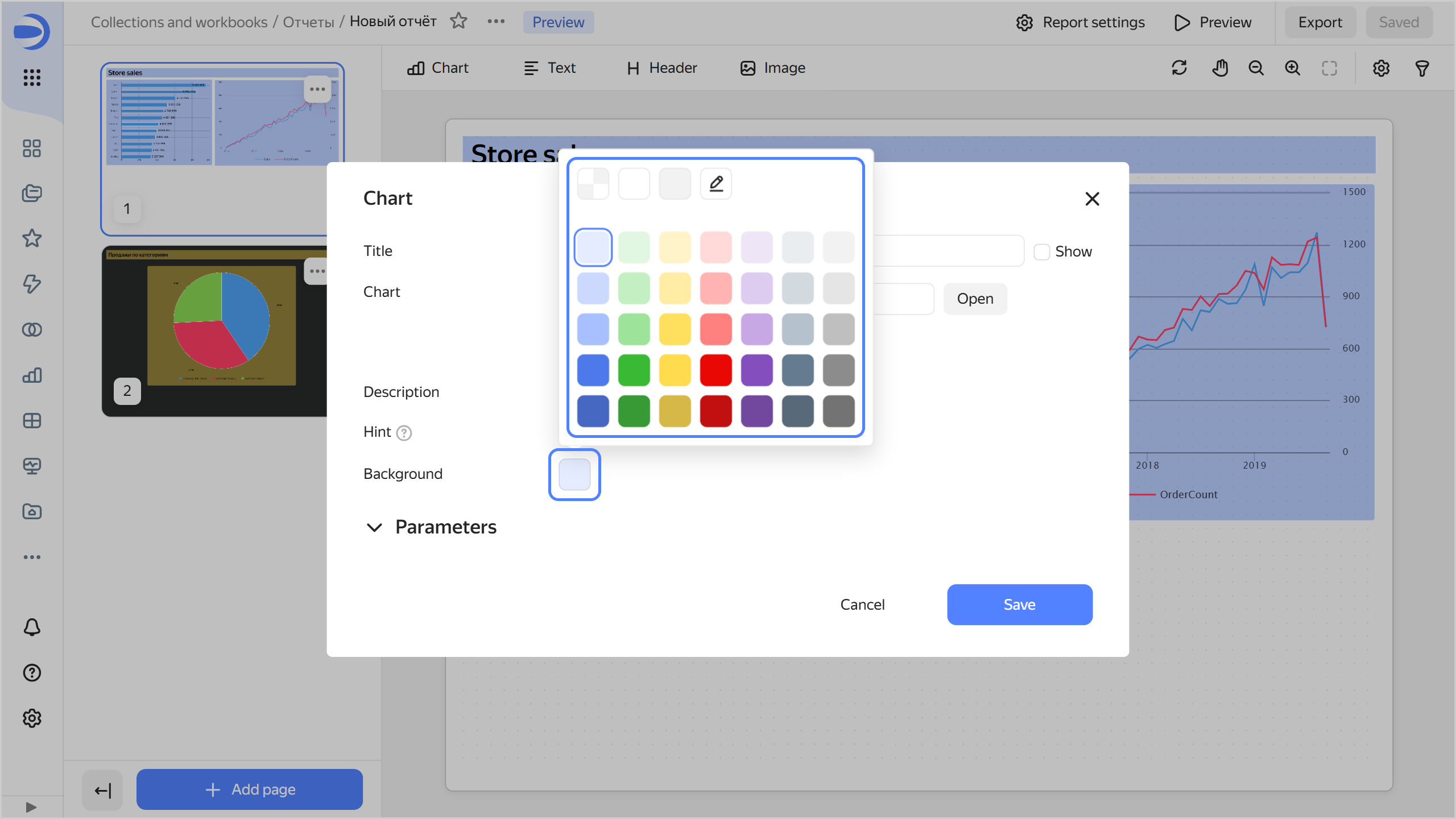
     ![report-widget-background](../_assets/datalens/report/report-widget-background.png)

     {% endcut %}

   * Click <!-- diplodoc:svg ![icon](../_assets/console-icons/pencil-to-line.svg) --><svg xmlns="http://www.w3.org/2000/svg" width="16" height="16" fill="none" viewBox="0 0 16 16"><path fill="currentColor" fill-rule="evenodd" d="M12.238 3.64a1.854 1.854 0 0 0-1.629-1.628l-.8.8a3.37 3.37 0 0 1 1.63 1.628zM4.74 7.88l3.87-3.868a1.854 1.854 0 0 1 1.628 1.629L6.369 9.51a1.5 1.5 0 0 1-.814.418l-1.48.247.247-1.48a1.5 1.5 0 0 1 .418-.814M9.72.78l-2 2-4.04 4.04a3 3 0 0 0-.838 1.628L2.48 10.62a1 1 0 0 0 1.151 1.15l2.17-.36a3 3 0 0 0 1.629-.839l4.04-4.04 2-2c.18-.18.28-.423.28-.677A3.353 3.353 0 0 0 10.397.5c-.254 0-.498.1-.678.28M2.75 13a.75.75 0 0 0 0 1.5h10.5a.75.75 0 0 0 0-1.5z" clip-rule="evenodd"/></svg> and set the color in hex format. You can also specify background transparency as a percentage.

     {% cut "Setting a color in hex format" %}
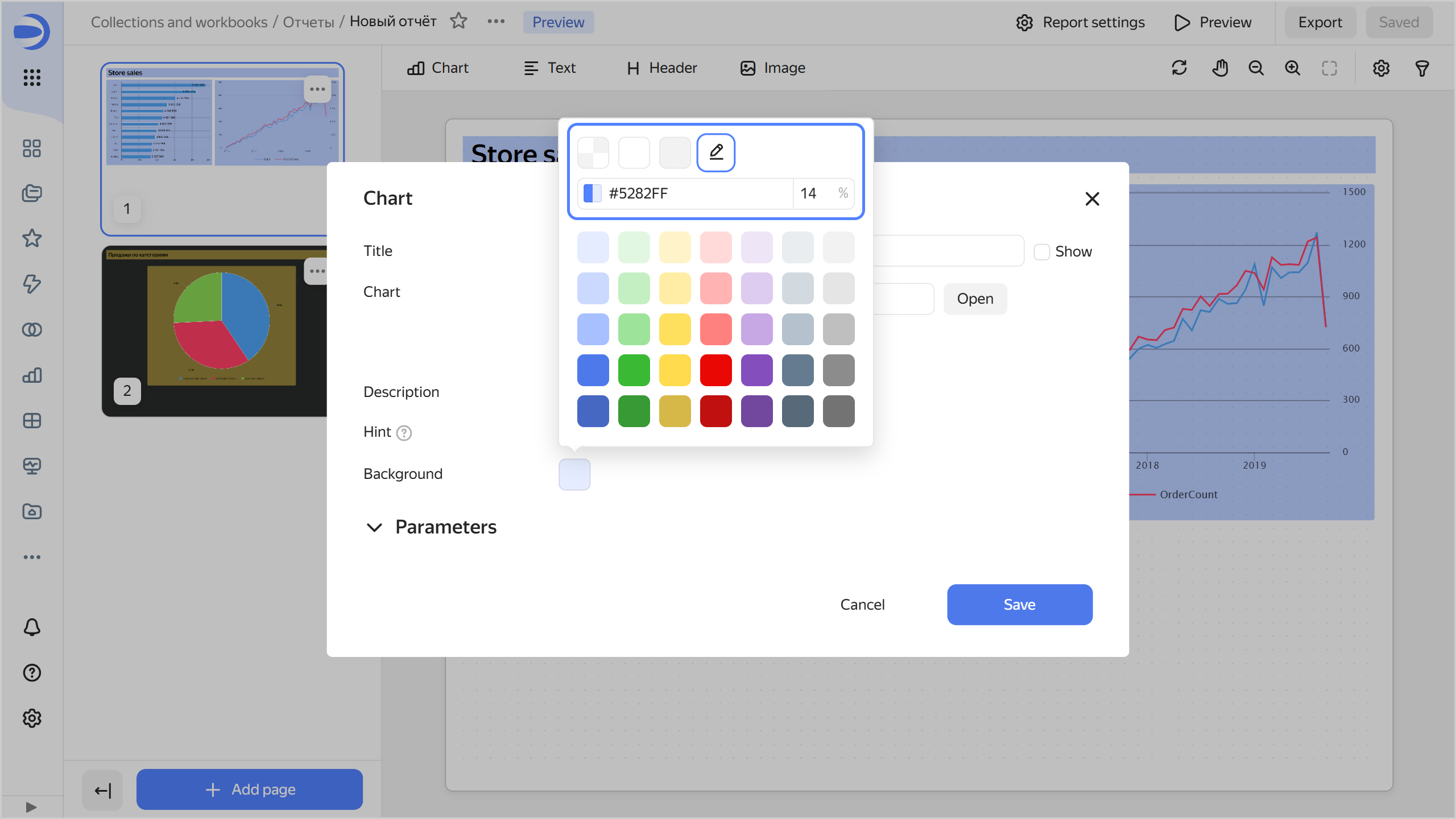
     ![report-widget-background-16](../_assets/datalens/report/report-widget-background-16.png)

     {% endcut %}

   * Click <!-- diplodoc:svg ![icon](../_assets/console-icons/pencil-to-line.svg) --><svg xmlns="http://www.w3.org/2000/svg" width="16" height="16" fill="none" viewBox="0 0 16 16"><path fill="currentColor" fill-rule="evenodd" d="M12.238 3.64a1.854 1.854 0 0 0-1.629-1.628l-.8.8a3.37 3.37 0 0 1 1.63 1.628zM4.74 7.88l3.87-3.868a1.854 1.854 0 0 1 1.628 1.629L6.369 9.51a1.5 1.5 0 0 1-.814.418l-1.48.247.247-1.48a1.5 1.5 0 0 1 .418-.814M9.72.78l-2 2-4.04 4.04a3 3 0 0 0-.838 1.628L2.48 10.62a1 1 0 0 0 1.151 1.15l2.17-.36a3 3 0 0 0 1.629-.839l4.04-4.04 2-2c.18-.18.28-.423.28-.677A3.353 3.353 0 0 0 10.397.5c-.254 0-.498.1-.678.28M2.75 13a.75.75 0 0 0 0 1.5h10.5a.75.75 0 0 0 0-1.5z" clip-rule="evenodd"/></svg> and then click the color icon preceding its hex value. In the window that opens, select a color from the color palette or specify a color in RGB, HSL, or hex format. To switch between formats, click <!-- diplodoc:svg ![icon](../_assets/console-icons/chevrons-expand-vertical.svg) --><svg xmlns="http://www.w3.org/2000/svg" width="16" height="16" fill="none" viewBox="0 0 16 16"><g clip-path="url(#svg-8o2egsvl__a)"><path fill="currentColor" fill-rule="evenodd" d="M3.58 4.109a.75.75 0 0 0 1.061 1.06L8 1.811l3.354 3.353a.75.75 0 0 0 1.06-1.06L8.53.22a.75.75 0 0 0-1.06 0zm8.84 7.782a.75.75 0 1 0-1.061-1.06l-3.36 3.358-3.353-3.353a.75.75 0 1 0-1.06 1.06L7.47 15.78a.75.75 0 0 0 1.06 0z" clip-rule="evenodd"/></g><defs><clipPath id="svg-8o2egsvl__a"><path fill="currentColor" d="M0 0h16v16H0z"/></clipPath></defs></svg>.

     {% cut "Switching between color formats" %}
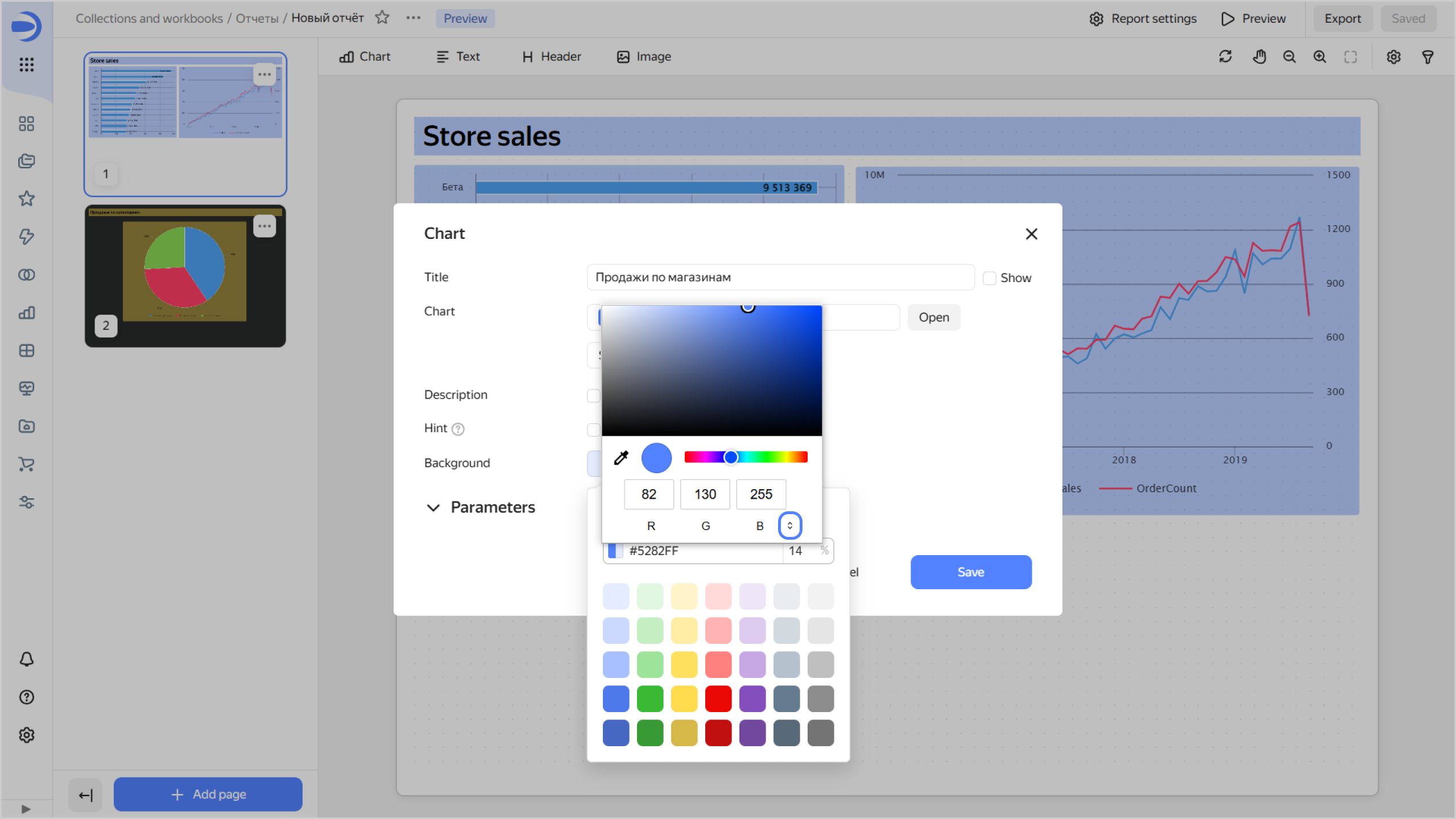
     ![report-widget-background-rgb](../_assets/datalens/report/report-widget-background-rgb.png)

     {% endcut %}
     
     You can also use the eyedropper tool to select a color on the report page.

     {% cut "Picking a color on the screen" %}
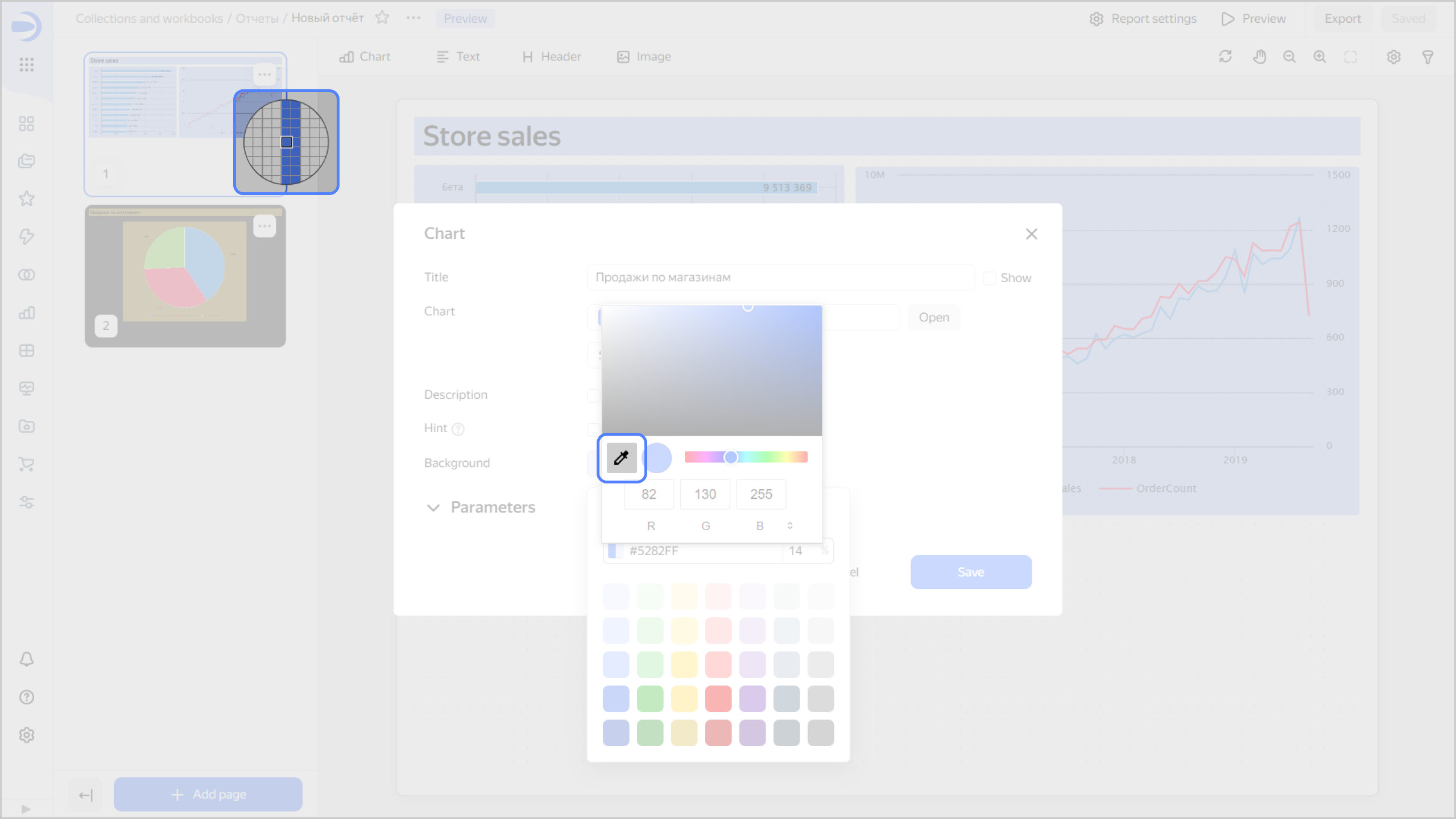
     ![report-widget-background-eyedropper](../_assets/datalens/report/report-widget-background-eyedropper.png)

     {% endcut %}


## Configuring a report {#report-settings}

Report settings are valid for all its pages:

1. At the top right, click <!-- diplodoc:svg ![icon](../_assets/console-icons/gear.svg) --><svg xmlns="http://www.w3.org/2000/svg" width="16" height="16" fill="none" viewBox="0 0 16 16"><path fill="currentColor" fill-rule="evenodd" d="M7.199 2H8.8a.2.2 0 0 1 .2.2c0 1.808 1.958 2.939 3.524 2.034a.2.2 0 0 1 .271.073l.802 1.388a.2.2 0 0 1-.073.272c-1.566.904-1.566 3.164 0 4.069a.2.2 0 0 1 .073.271l-.802 1.388a.2.2 0 0 1-.271.073C10.958 10.863 9 11.993 9 13.8a.2.2 0 0 1-.199.2H7.2a.2.2 0 0 1-.2-.2c0-1.808-1.958-2.938-3.524-2.034a.2.2 0 0 1-.272-.073l-.8-1.388a.2.2 0 0 1 .072-.271c1.566-.905 1.566-3.165 0-4.07a.2.2 0 0 1-.073-.27l.801-1.389a.2.2 0 0 1 .272-.072C5.042 5.138 7 4.007 7 2.199c0-.11.089-.199.199-.199M5.5 2.2c0-.94.76-1.7 1.699-1.7H8.8c.94 0 1.7.76 1.7 1.7a.85.85 0 0 0 1.274.735 1.7 1.7 0 0 1 2.32.622l.802 1.388c.469.813.19 1.851-.622 2.32a.85.85 0 0 0 0 1.472 1.7 1.7 0 0 1 .622 2.32l-.802 1.388a1.7 1.7 0 0 1-2.32.622.85.85 0 0 0-1.274.735c0 .939-.76 1.7-1.699 1.7H7.2a1.7 1.7 0 0 1-1.699-1.7.85.85 0 0 0-1.274-.735 1.7 1.7 0 0 1-2.32-.622l-.802-1.388a1.7 1.7 0 0 1 .622-2.32.85.85 0 0 0 0-1.471 1.7 1.7 0 0 1-.622-2.32l.801-1.389a1.7 1.7 0 0 1 2.32-.622A.85.85 0 0 0 5.5 2.2m4 5.8a1.5 1.5 0 1 1-3 0 1.5 1.5 0 0 1 3 0M11 8a3 3 0 1 1-6 0 3 3 0 0 1 6 0" clip-rule="evenodd"/></svg> **Report settings**.
1. Customize the appearance:

   * **Theme**: Select page theme, <!-- diplodoc:svg ![icon](../_assets/console-icons/sun.svg) --><svg xmlns="http://www.w3.org/2000/svg" width="16" height="16" fill="none" viewBox="0 0 16 16"><path fill="currentColor" fill-rule="evenodd" d="M8 3a.75.75 0 0 1-.75-.75V.75a.75.75 0 0 1 1.5 0v1.5A.75.75 0 0 1 8 3m0 7.5a2.5 2.5 0 1 0 0-5 2.5 2.5 0 0 0 0 5M8 12a4 4 0 1 0 0-8 4 4 0 0 0 0 8m-.75 3.25a.75.75 0 0 0 1.5 0v-1.5a.75.75 0 0 0-1.5 0zM13 8a.75.75 0 0 1 .75-.75h1.5a.75.75 0 0 1 0 1.5h-1.5A.75.75 0 0 1 13 8M.75 7.25a.75.75 0 0 0 0 1.5h1.5a.75.75 0 0 0 0-1.5zm10.786-2.786a.75.75 0 0 1 0-1.06l1.06-1.06a.75.75 0 0 1 1.06 1.06l-1.06 1.06a.75.75 0 0 1-1.06 0m-9.193 8.132a.75.75 0 0 0 1.06 1.06l1.062-1.06a.75.75 0 0 0-1.061-1.06zm9.193-1.06a.75.75 0 0 1 1.06 0l1.06 1.06a.75.75 0 0 1-1.06 1.06l-1.06-1.06a.75.75 0 0 1 0-1.06M3.404 2.343a.75.75 0 0 0-1.06 1.06l1.06 1.061a.75.75 0 1 0 1.06-1.06z" clip-rule="evenodd"/></svg> light or <!-- diplodoc:svg ![icon](../_assets/console-icons/moon.svg) --><svg xmlns="http://www.w3.org/2000/svg" width="16" height="16" fill="none" viewBox="0 0 16 16"><path fill="currentColor" fill-rule="evenodd" d="M8 13.5a5.5 5.5 0 0 0 2.263-10.514 5.5 5.5 0 0 1-7.278 7.278A5.5 5.5 0 0 0 8 13.5M1.045 8.795a7.001 7.001 0 1 0 7.75-7.75l-.028-.003A7 7 0 0 0 8 1c-.527 0-.59.842-.185 1.18a4 4 0 0 1 .342.322A4 4 0 1 1 2.18 7.814C1.842 7.41 1 7.474 1 8a7 7 0 0 0 .045.794" clip-rule="evenodd"/></svg> dark.
   * **Contrast**: Select standard (default) or high contrast.
   * **Background color**: Specify a color in hex format or select one from the color palette.
   * **Format**: Select a format (`A4`, `A3`, `16:9 (Full HD)`, `16:9 (2K)`, or `16:9 (4K)`).

     {% cut "Displaying the report in specific formats" %}
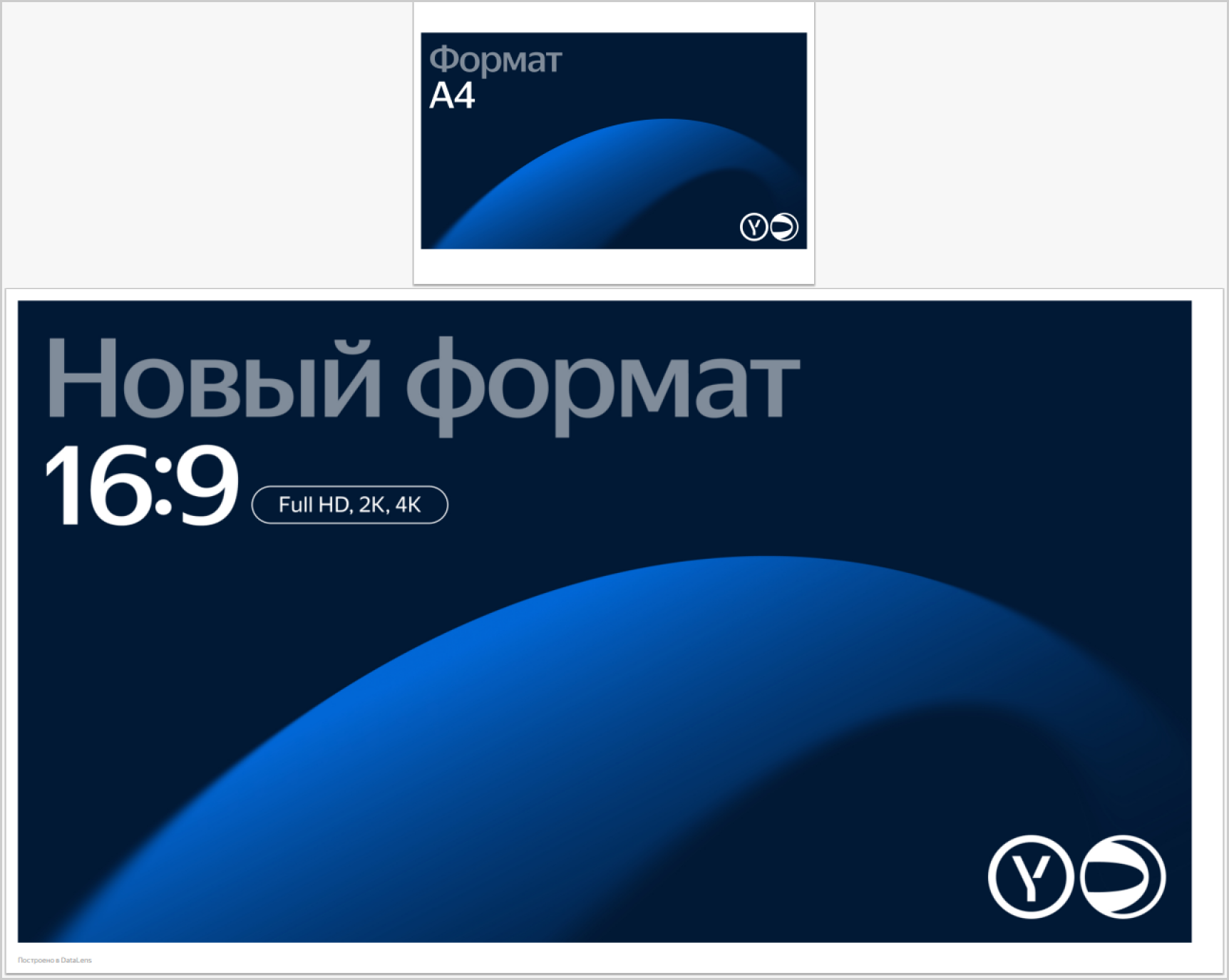
     ![report-16-9](../_assets/datalens/report/report-16-9.png)

     {% endcut %}

   * **Orientation**: `Album` or `Portrait`.
   * Optionally, enable the **Display grid** option for easy alignment of widgets in your report.
     
     {% cut "Report without grid display" %}
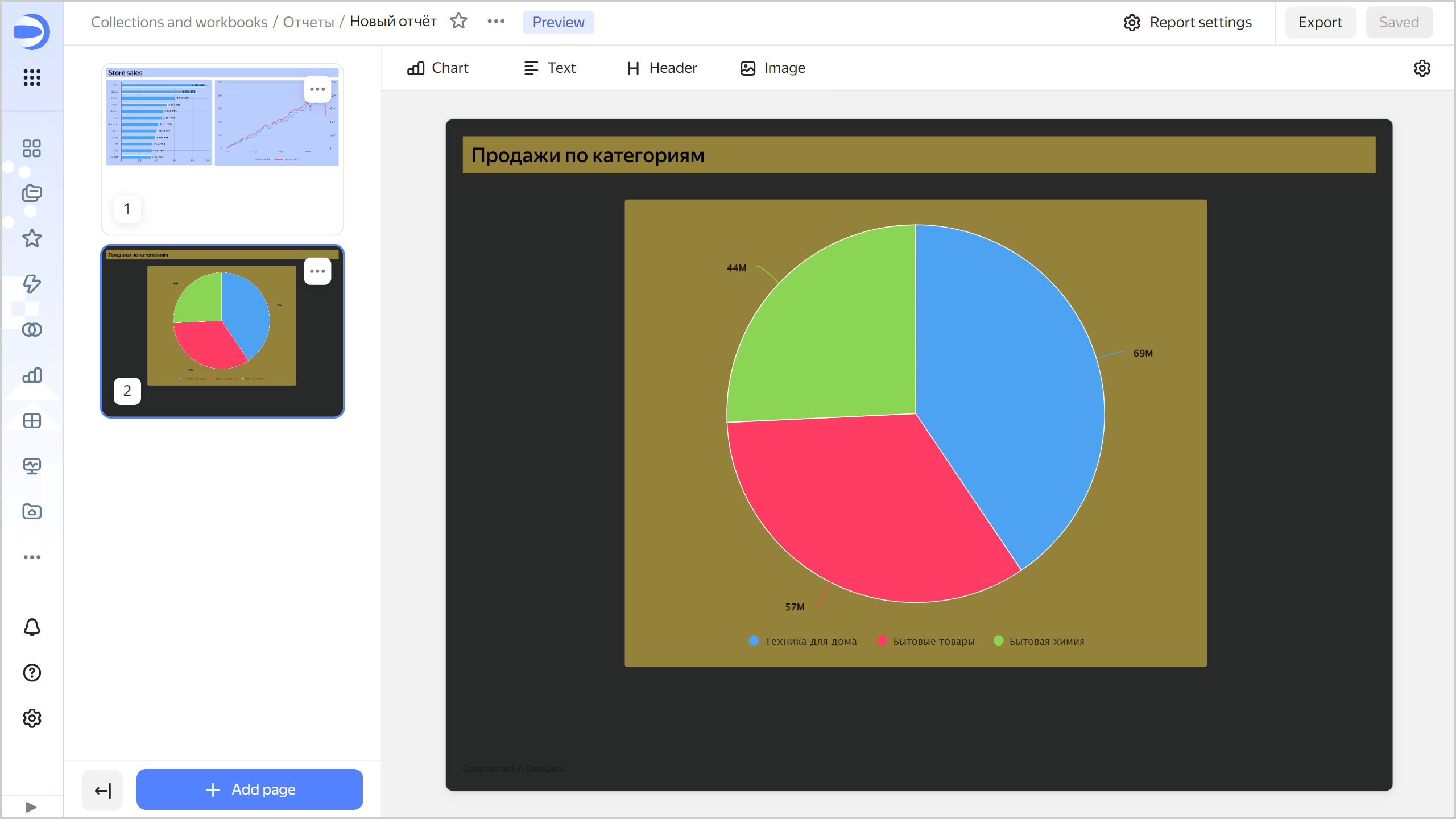
     ![report-grid-off](../_assets/datalens/report/report-grid-off.png)

     {% endcut %}

     {% cut "Report with grid display" %}
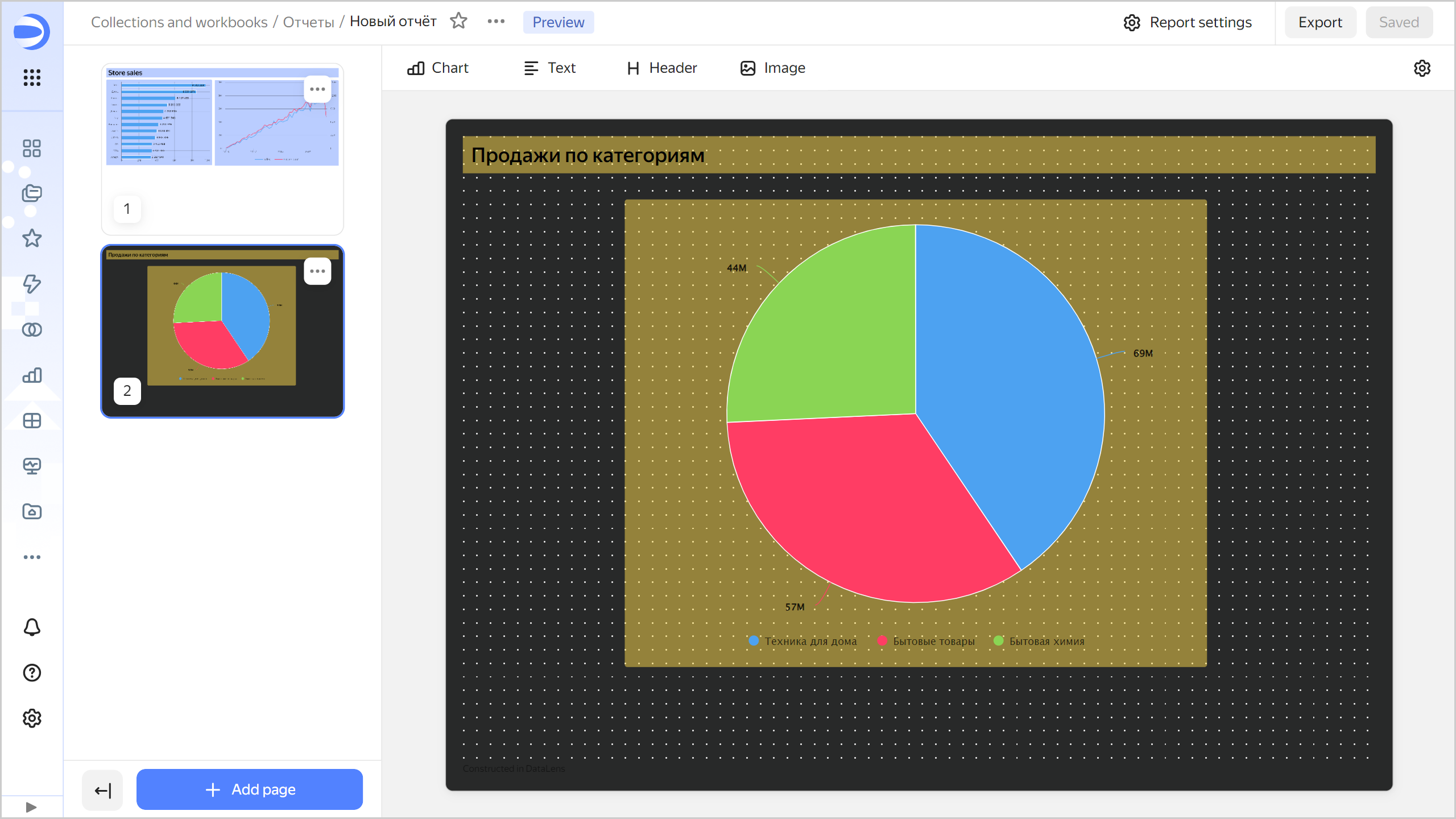
     ![report-grid-on](../_assets/datalens/report/report-grid-on.png)

     {% endcut %}

1. Configure footer settings:

   * **Footer text**: Displays the footer you enter in the field on the right. If you leave this field empty, no footer will be displayed. By default, this option is disabled and the standard footer is displayed: `Built in DataLens`.
   * **Footer link**: Adds a link to your footer. Your link address is specified in the field on the right.
   * **First page footer**: Repeats the footer on the first page. By default, no footer is displayed on the first page.
   * **Page numbering**: Adds a page number to the footer.


## Configuring pages {#page-settings}

You can use individual settings for each page, different from the general report settings. By default, all pages are subject to [report settings](#report-settings).

{% note info %}

Page settings have a higher priority than the same report settings. If page settings are different from the same report settings, the former will override the latter.

{% endnote %}

1. Select the report page you need to configure.
1. At the top right, click <!-- diplodoc:svg ![icon](../_assets/console-icons/gear.svg) --><svg xmlns="http://www.w3.org/2000/svg" width="16" height="16" fill="none" viewBox="0 0 16 16"><path fill="currentColor" fill-rule="evenodd" d="M7.199 2H8.8a.2.2 0 0 1 .2.2c0 1.808 1.958 2.939 3.524 2.034a.2.2 0 0 1 .271.073l.802 1.388a.2.2 0 0 1-.073.272c-1.566.904-1.566 3.164 0 4.069a.2.2 0 0 1 .073.271l-.802 1.388a.2.2 0 0 1-.271.073C10.958 10.863 9 11.993 9 13.8a.2.2 0 0 1-.199.2H7.2a.2.2 0 0 1-.2-.2c0-1.808-1.958-2.938-3.524-2.034a.2.2 0 0 1-.272-.073l-.8-1.388a.2.2 0 0 1 .072-.271c1.566-.905 1.566-3.165 0-4.07a.2.2 0 0 1-.073-.27l.801-1.389a.2.2 0 0 1 .272-.072C5.042 5.138 7 4.007 7 2.199c0-.11.089-.199.199-.199M5.5 2.2c0-.94.76-1.7 1.699-1.7H8.8c.94 0 1.7.76 1.7 1.7a.85.85 0 0 0 1.274.735 1.7 1.7 0 0 1 2.32.622l.802 1.388c.469.813.19 1.851-.622 2.32a.85.85 0 0 0 0 1.472 1.7 1.7 0 0 1 .622 2.32l-.802 1.388a1.7 1.7 0 0 1-2.32.622.85.85 0 0 0-1.274.735c0 .939-.76 1.7-1.699 1.7H7.2a1.7 1.7 0 0 1-1.699-1.7.85.85 0 0 0-1.274-.735 1.7 1.7 0 0 1-2.32-.622l-.802-1.388a1.7 1.7 0 0 1 .622-2.32.85.85 0 0 0 0-1.471 1.7 1.7 0 0 1-.622-2.32l.801-1.389a1.7 1.7 0 0 1 2.32-.622A.85.85 0 0 0 5.5 2.2m4 5.8a1.5 1.5 0 1 1-3 0 1.5 1.5 0 0 1 3 0M11 8a3 3 0 1 1-6 0 3 3 0 0 1 6 0" clip-rule="evenodd"/></svg> and pick the settings in the window on the right:

   * **Theme**: Page theme, <!-- diplodoc:svg ![icon](../_assets/console-icons/sun.svg) --><svg xmlns="http://www.w3.org/2000/svg" width="16" height="16" fill="none" viewBox="0 0 16 16"><path fill="currentColor" fill-rule="evenodd" d="M8 3a.75.75 0 0 1-.75-.75V.75a.75.75 0 0 1 1.5 0v1.5A.75.75 0 0 1 8 3m0 7.5a2.5 2.5 0 1 0 0-5 2.5 2.5 0 0 0 0 5M8 12a4 4 0 1 0 0-8 4 4 0 0 0 0 8m-.75 3.25a.75.75 0 0 0 1.5 0v-1.5a.75.75 0 0 0-1.5 0zM13 8a.75.75 0 0 1 .75-.75h1.5a.75.75 0 0 1 0 1.5h-1.5A.75.75 0 0 1 13 8M.75 7.25a.75.75 0 0 0 0 1.5h1.5a.75.75 0 0 0 0-1.5zm10.786-2.786a.75.75 0 0 1 0-1.06l1.06-1.06a.75.75 0 0 1 1.06 1.06l-1.06 1.06a.75.75 0 0 1-1.06 0m-9.193 8.132a.75.75 0 0 0 1.06 1.06l1.062-1.06a.75.75 0 0 0-1.061-1.06zm9.193-1.06a.75.75 0 0 1 1.06 0l1.06 1.06a.75.75 0 0 1-1.06 1.06l-1.06-1.06a.75.75 0 0 1 0-1.06M3.404 2.343a.75.75 0 0 0-1.06 1.06l1.06 1.061a.75.75 0 1 0 1.06-1.06z" clip-rule="evenodd"/></svg> light or <!-- diplodoc:svg ![icon](../_assets/console-icons/moon.svg) --><svg xmlns="http://www.w3.org/2000/svg" width="16" height="16" fill="none" viewBox="0 0 16 16"><path fill="currentColor" fill-rule="evenodd" d="M8 13.5a5.5 5.5 0 0 0 2.263-10.514 5.5 5.5 0 0 1-7.278 7.278A5.5 5.5 0 0 0 8 13.5M1.045 8.795a7.001 7.001 0 1 0 7.75-7.75l-.028-.003A7 7 0 0 0 8 1c-.527 0-.59.842-.185 1.18a4 4 0 0 1 .342.322A4 4 0 1 1 2.18 7.814C1.842 7.41 1 7.474 1 8a7 7 0 0 0 .045.794" clip-rule="evenodd"/></svg> dark.
   * **Contrast**: Select standard (default) or high contrast.
   * **Background color**: Specify a color in hex format or select one from the color palette.
   * **Format**: Select a format (`A4`, `A3`, `16:9 (Full HD)`, `16:9 (2K)`, or `16:9 (4K)`).

     {% cut "Displaying the report in specific formats" %}

     ![report-16-9](../_assets/datalens/report/report-16-9.png)

     {% endcut %}

   * **Orientation**: `Album` or `Portrait`.

1. In the top-right corner, click **Save**.

## Configuring selectors {#add-selector}

For operations with [selectors](../dashboard/selector.md), click <!-- diplodoc:svg ![icon](../_assets/console-icons/funnel.svg) --><svg xmlns="http://www.w3.org/2000/svg" width="16" height="16" fill="none" viewBox="0 0 16 16"><path fill="currentColor" fill-rule="evenodd" d="M12.5 4c0 .174-.071.513-.885.888S9.538 5.5 8 5.5s-2.799-.237-3.615-.612C3.57 4.513 3.5 4.174 3.5 4s.071-.513.885-.888S6.462 2.5 8 2.5s2.799.237 3.615.612c.814.375.885.714.885.888m-1.448 2.66C10.158 6.888 9.115 7 8 7s-2.158-.113-3.052-.34l1.98 2.905c.21.308.322.672.322 1.044v3.37q.088.02.25.021c.422 0 .749-.14.95-.316.185-.162.3-.38.3-.684v-2.39c0-.373.112-.737.322-1.045zM8 1c3.314 0 6 1 6 3a3.24 3.24 0 0 1-.563 1.826l-3.125 4.584a.35.35 0 0 0-.062.2V13c0 1.5-1.25 2.5-2.75 2.5s-1.75-1-1.75-1v-3.89a.35.35 0 0 0-.061-.2L2.563 5.826A3.24 3.24 0 0 1 2 4c0-2 2.686-3 6-3m-.88 12.936q-.015-.008-.013-.01z" clip-rule="evenodd"/></svg> at the top right. The **Selectors** window will open on the right. Set the selector values to filter your report data with.

You can add, configure, or delete a selector in your report:

* To enter edit mode, click <!-- diplodoc:svg ![icon](../_assets/console-icons/pencil.svg) --><svg xmlns="http://www.w3.org/2000/svg" width="16" height="16" fill="none" viewBox="0 0 16 16"><path fill="currentColor" fill-rule="evenodd" d="M11.423 1A3.577 3.577 0 0 1 15 4.577c0 .27-.108.53-.3.722l-.528.529-1.971 1.971-5.059 5.059a3 3 0 0 1-1.533.82l-2.638.528a1 1 0 0 1-1.177-1.177l.528-2.638a3 3 0 0 1 .82-1.533l5.059-5.059 2.5-2.5c.191-.191.451-.299.722-.299m-2.31 4.009-4.91 4.91a1.5 1.5 0 0 0-.41.766l-.38 1.903 1.902-.38a1.5 1.5 0 0 0 .767-.41l4.91-4.91a2.08 2.08 0 0 0-1.88-1.88m3.098.658a3.6 3.6 0 0 0-1.878-1.879l1.28-1.28c.995.09 1.788.884 1.878 1.88z" clip-rule="evenodd"/></svg>.
* To get back to filter mode, click <!-- diplodoc:svg ![icon](../_assets/console-icons/check.svg) --><svg xmlns="http://www.w3.org/2000/svg" width="16" height="16" fill="none" viewBox="0 0 16 16"><path fill="currentColor" fill-rule="evenodd" d="M13.488 3.43a.75.75 0 0 1 .081 1.058l-6 7a.75.75 0 0 1-1.1.042l-3.5-3.5A.75.75 0 0 1 4.03 6.97l2.928 2.927 5.473-6.385a.75.75 0 0 1 1.057-.081" clip-rule="evenodd"/></svg>.

To hide the **Selectors** window, click <!-- diplodoc:svg ![icon](../_assets/console-icons/xmark.svg) --><svg xmlns="http://www.w3.org/2000/svg" width="16" height="16" fill="none" viewBox="0 0 16 16"><path fill="currentColor" fill-rule="evenodd" d="M3.47 3.47a.75.75 0 0 1 1.06 0L8 6.94l3.47-3.47a.75.75 0 1 1 1.06 1.06L9.06 8l3.47 3.47a.75.75 0 1 1-1.06 1.06L8 9.06l-3.47 3.47a.75.75 0 0 1-1.06-1.06L6.94 8 3.47 4.53a.75.75 0 0 1 0-1.06" clip-rule="evenodd"/></svg>.

For more information, see [Selectors in reports](./add-selector.md).

## Sharing a link to a report {#link-on-report}

To copy a link to a report, click <!-- diplodoc:svg ![icon](../_assets/console-icons/ellipsis.svg) --><svg xmlns="http://www.w3.org/2000/svg" width="16" height="16" fill="none" viewBox="0 0 16 16"><path fill="currentColor" fill-rule="evenodd" d="M3 9.5a1.5 1.5 0 1 0 0-3 1.5 1.5 0 0 0 0 3M9.5 8a1.5 1.5 0 1 1-3 0 1.5 1.5 0 0 1 3 0m5 0a1.5 1.5 0 1 1-3 0 1.5 1.5 0 0 1 3 0" clip-rule="evenodd"/></svg> at the top right and select <!-- diplodoc:svg ![icon](../_assets/console-icons/link.svg) --><svg xmlns="http://www.w3.org/2000/svg" width="16" height="16" fill="none" viewBox="0 0 16 16"><path fill="currentColor" fill-rule="evenodd" d="M3.47 6.53a.75.75 0 0 1 1.06 1.061l-.727.727a2.743 2.743 0 0 0 3.879 3.879l.727-.727a.75.75 0 0 1 1.06 1.06l-.726.727a4.243 4.243 0 0 1-6-6zm8 1.879a.75.75 0 0 0 1.06 1.06l.727-.726a4.243 4.243 0 0 0-6-6l-.727.727a.75.75 0 0 0 1.061 1.06l.727-.727a2.743 2.743 0 0 1 3.879 3.879zm-.94-1.879a.75.75 0 1 0-1.06-1.06l-4 4a.75.75 0 1 0 1.06 1.06z" clip-rule="evenodd"/></svg> **Copy link**. You can send this link to users with [access](../security/index.md) to the report.

To share a link to a certain report page, go to the page you need and copy the URL from the browser address bar.

## Configuring scaling {#scaling-settings}

Use the controls in the upper right corner to change the display scale or move the report pages around the screen:

* To move a report page, click <!-- diplodoc:svg ![icon](../_assets/console-icons/hand-stop.svg) --><svg xmlns="http://www.w3.org/2000/svg" width="16" height="16" fill="none" viewBox="0 0 16 16"><path fill="currentColor" fill-rule="evenodd" d="M4.618 8.405 3.47 8.118a1.988 1.988 0 0 0-1.8 3.417l2.198 1.946a7.9 7.9 0 0 0 6.14 1.932A5.34 5.34 0 0 0 14.72 9.71l-.437-5.83a2.033 2.033 0 0 0-2.511-1.822l-.005-.113a2.02 2.02 0 0 0-3.866-.739A2.04 2.04 0 0 0 4.97 2.91zm1.673-2.64.126-1.968.045-.707.006-.084a.54.54 0 0 1 1.077-.015l.007.084.064.706.032.346.147 1.618.201 2.216L8 8h1l.004-.091.146-3.822.049-1.256.03-.792.002-.04A.52.52 0 0 1 10.268 2l.002.04.03.792.02.576.02.524.153 4.125.002.063.003.077.002.053h1l.002-.037.04-.762.139-2.64.039-.738.003-.068a.53.53 0 0 1 .533-.505c.278 0 .51.215.531.493l.005.068.055.737.198 2.636.18 2.388a3.84 3.84 0 0 1-3.389 4.1 6.4 6.4 0 0 1-4.974-1.565l-1.259-1.114L3.328 11l-.473-.42-.19-.168a.488.488 0 0 1 .442-.84l.246.062.613.154.357.089.198.05 1.479.37.098-1.523z" clip-rule="evenodd"/></svg> or press and hold the **space** key on your keyboard. To return to widget moving mode, click <!-- diplodoc:svg ![icon](../_assets/console-icons/hand-stop.svg) --><svg xmlns="http://www.w3.org/2000/svg" width="16" height="16" fill="none" viewBox="0 0 16 16"><path fill="currentColor" fill-rule="evenodd" d="M4.618 8.405 3.47 8.118a1.988 1.988 0 0 0-1.8 3.417l2.198 1.946a7.9 7.9 0 0 0 6.14 1.932A5.34 5.34 0 0 0 14.72 9.71l-.437-5.83a2.033 2.033 0 0 0-2.511-1.822l-.005-.113a2.02 2.02 0 0 0-3.866-.739A2.04 2.04 0 0 0 4.97 2.91zm1.673-2.64.126-1.968.045-.707.006-.084a.54.54 0 0 1 1.077-.015l.007.084.064.706.032.346.147 1.618.201 2.216L8 8h1l.004-.091.146-3.822.049-1.256.03-.792.002-.04A.52.52 0 0 1 10.268 2l.002.04.03.792.02.576.02.524.153 4.125.002.063.003.077.002.053h1l.002-.037.04-.762.139-2.64.039-.738.003-.068a.53.53 0 0 1 .533-.505c.278 0 .51.215.531.493l.005.068.055.737.198 2.636.18 2.388a3.84 3.84 0 0 1-3.389 4.1 6.4 6.4 0 0 1-4.974-1.565l-1.259-1.114L3.328 11l-.473-.42-.19-.168a.488.488 0 0 1 .442-.84l.246.062.613.154.357.089.198.05 1.479.37.098-1.523z" clip-rule="evenodd"/></svg> again or release the **space** key on your keyboard.
* To zoom out, click <!-- diplodoc:svg ![icon](../_assets/console-icons/magnifier-minus.svg) --><svg xmlns="http://www.w3.org/2000/svg" width="16" height="16" fill="none" viewBox="0 0 16 16"><path fill="currentColor" fill-rule="evenodd" d="M6.75 11a4.25 4.25 0 1 0 0-8.5 4.25 4.25 0 0 0 0 8.5m0 1.5a5.73 5.73 0 0 0 3.501-1.188l2.719 2.718a.75.75 0 1 0 1.06-1.06l-2.718-2.719A5.75 5.75 0 1 0 6.75 12.5m-2-6.5a.75.75 0 0 0 0 1.5h4a.75.75 0 0 0 0-1.5z" clip-rule="evenodd"/></svg> or press `Ctrl` (`Cmd`) + `-` on your keyboard.
* To zoom in, click <!-- diplodoc:svg ![icon](../_assets/console-icons/magnifier-plus.svg) --><svg xmlns="http://www.w3.org/2000/svg" width="16" height="16" fill="none" viewBox="0 0 16 16"><path fill="currentColor" fill-rule="evenodd" d="M6.75 11a4.25 4.25 0 1 0 0-8.5 4.25 4.25 0 0 0 0 8.5m0 1.5a5.73 5.73 0 0 0 3.501-1.188l2.719 2.718a.75.75 0 1 0 1.06-1.06l-2.718-2.719A5.75 5.75 0 1 0 6.75 12.5m.75-7.75a.75.75 0 0 0-1.5 0V6H4.75a.75.75 0 0 0 0 1.5H6v1.25a.75.75 0 0 0 1.5 0V7.5h1.25a.75.75 0 0 0 0-1.5H7.5z" clip-rule="evenodd"/></svg> or press `Ctrl` (`Cmd`) + `+` on your keyboard.
* To reset the display scale and center the report on the screen, click <!-- diplodoc:svg ![icon](../_assets/console-icons/square-dashed.svg) --><svg xmlns="http://www.w3.org/2000/svg" width="16" height="16" fill="none" viewBox="0 0 16 16"><path fill="currentColor" fill-rule="evenodd" d="M4.5 3A1.5 1.5 0 0 0 3 4.5v1.75a.75.75 0 0 1-1.5 0V4.5a3 3 0 0 1 3-3h1.75a.75.75 0 0 1 0 1.5zM9 2.25a.75.75 0 0 1 .75-.75h1.75a3 3 0 0 1 3 3v1.75a.75.75 0 0 1-1.5 0V4.5A1.5 1.5 0 0 0 11.5 3H9.75A.75.75 0 0 1 9 2.25M2.25 9a.75.75 0 0 1 .75.75v1.75A1.5 1.5 0 0 0 4.5 13h1.75a.75.75 0 0 1 0 1.5H4.5a3 3 0 0 1-3-3V9.75A.75.75 0 0 1 2.25 9m11.5 0a.75.75 0 0 1 .75.75v1.75a3 3 0 0 1-3 3H9.75a.75.75 0 0 1 0-1.5h1.75a1.5 1.5 0 0 0 1.5-1.5V9.75a.75.75 0 0 1 .75-.75" clip-rule="evenodd"/></svg> or press `Ctrl` (`Cmd`) + `0` on your keyboard.

## Enabling preview {#report-preview}

To enable full-screen report view mode, click <!-- diplodoc:svg ![icon](../_assets/console-icons/play.svg) --><svg xmlns="http://www.w3.org/2000/svg" width="16" height="16" fill="none" viewBox="0 0 16 16"><g clip-path="url(#svg-u86acj09__a)"><path fill="currentColor" fill-rule="evenodd" d="M14.006 7.134 5.5 2.217a1 1 0 0 0-1.5.866v9.834a1 1 0 0 0 1.5.866l8.506-4.917a1 1 0 0 0 0-1.732m.75 3.03c1.665-.962 1.665-3.366 0-4.329L6.251.918C4.585-.045 2.5 1.158 2.5 3.083v9.834c0 1.925 2.085 3.128 3.751 2.164z" clip-rule="evenodd"/></g><defs><clipPath id="svg-u86acj09__a"><path fill="currentColor" d="M0 0h16v16H0z"/></clipPath></defs></svg> **Preview** in the upper right corner and select the preview mode: <!-- diplodoc:svg ![icon](../_assets/console-icons/layout-split-rows.svg) --><svg xmlns="http://www.w3.org/2000/svg" width="16" height="16" fill="none" viewBox="0 0 16 16"><path fill="currentColor" fill-rule="evenodd" d="M13.5 4v1a1 1 0 0 1-1 1h-9a1 1 0 0 1-1-1V4a1 1 0 0 1 1-1h9a1 1 0 0 1 1 1M15 5V4a2.5 2.5 0 0 0-2.5-2.5h-9A2.5 2.5 0 0 0 1 4v1a2.5 2.5 0 0 0 2.5 2.5h9A2.5 2.5 0 0 0 15 5m-1.5 6v1a1 1 0 0 1-1 1h-9a1 1 0 0 1-1-1v-1a1 1 0 0 1 1-1h9a1 1 0 0 1 1 1m1.5 1v-1a2.5 2.5 0 0 0-2.5-2.5h-9A2.5 2.5 0 0 0 1 11v1a2.5 2.5 0 0 0 2.5 2.5h9A2.5 2.5 0 0 0 15 12" clip-rule="evenodd"/></svg> **In document format** or <!-- diplodoc:svg ![icon](../_assets/console-icons/chevrons-expand-up-right.svg) --><svg xmlns="http://www.w3.org/2000/svg" width="16" height="16" fill="none" viewBox="0 0 16 16"><path fill="currentColor" fill-rule="evenodd" d="M7.754 2.004a.75.75 0 0 0 0 1.5h4.75v4.742a.75.75 0 0 0 1.5 0V2.754a.75.75 0 0 0-.75-.75zm.492 11.992a.75.75 0 0 0 0-1.5h-4.75V7.754a.75.75 0 0 0-1.5 0v5.492a.75.75 0 0 0 .75.75z" clip-rule="evenodd"/></svg> **In presentation format**:

* Preview in document format: the report pages are displayed one by one, top to bottom, on a single browser screen.

  You can navigate through the report pages vertically by scrolling.
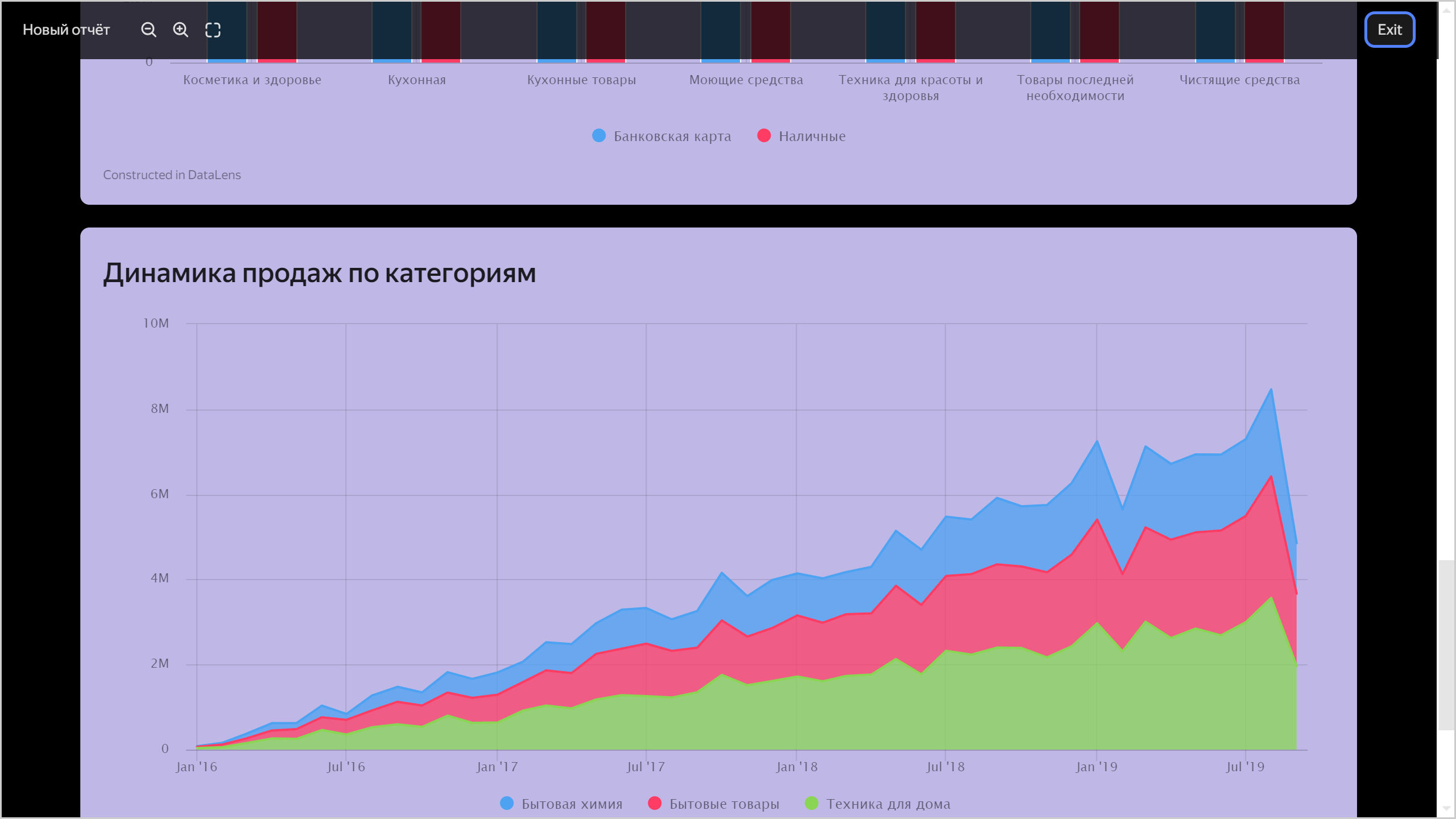
  
  ![report-page](../_assets/datalens/report/preview-document-2pages.png)

* Preview in presentation format: the report pages are presented as separate slides. You can navigate between the report pages by using:
  
  * **Right and left** arrows on the keyboard to go to the next or previous page, respectively.
  * Navigation controls at the bottom of the screen to go to the next, previous, first, last page, or particular page by number.
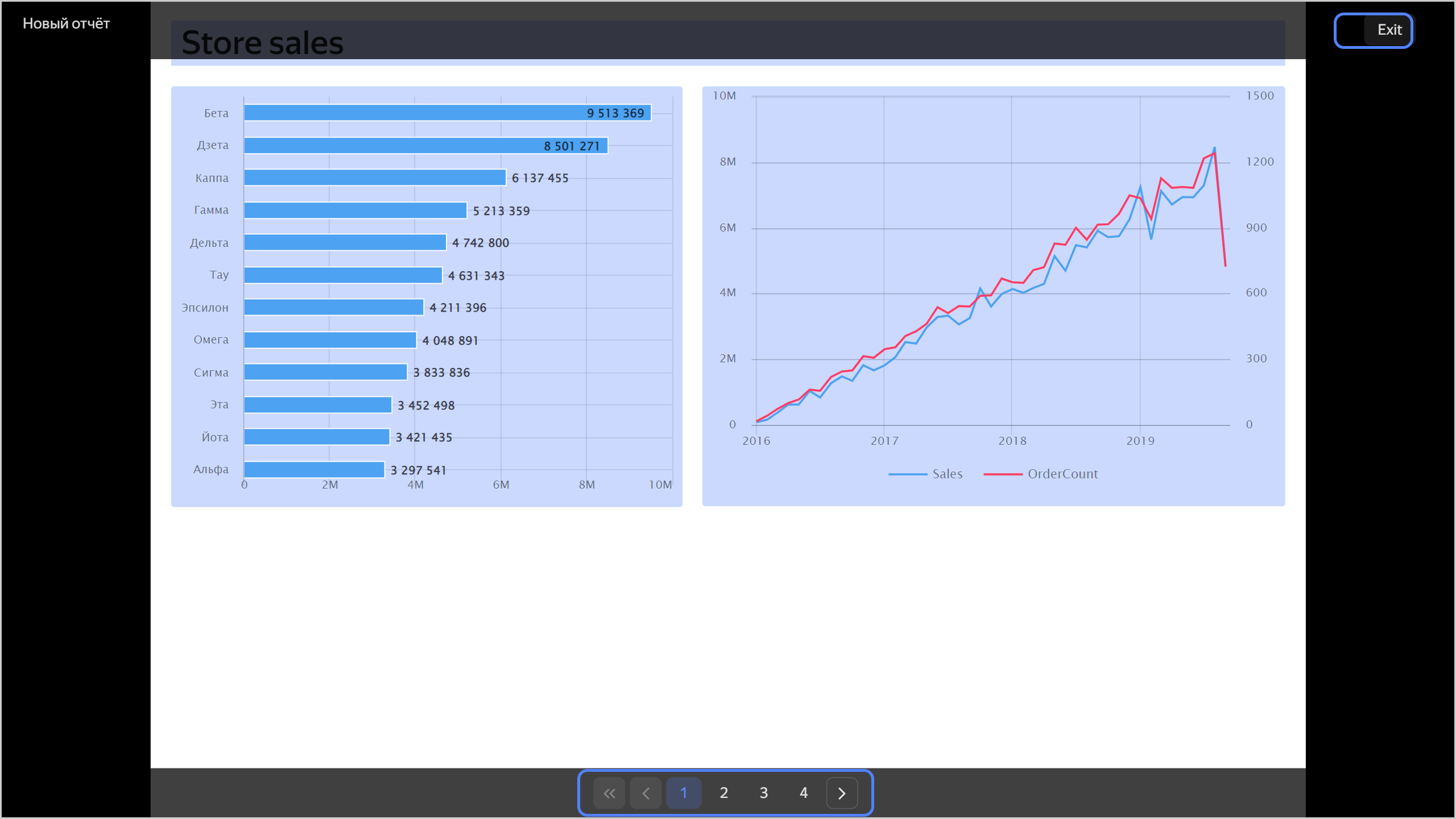
  ![report-page](../_assets/datalens/report/preview-presentation.png)

To exit the preview mode, click **Close** at the top of the screen or press **Esc** on the keyboard.

## Exporting a report {#report-export}

To export a report, click **Export**. The report will be exported to a `.pdf` file.

All links created in [text](#text) widgets on report pages will be active in the exported file.


## Banning the use of Neuroanalyst {#report-neuroanalyst-off}

<!-- source: en/_includes/datalens/operations/datalens-report-neuroanalyst-off.md -->
1. In the left-hand panel, click <!-- diplodoc:svg ![image](../_assets/console-icons/display-pulse.svg) --><svg xmlns="http://www.w3.org/2000/svg" width="16" height="16" fill="none" viewBox="0 0 16 16"><path fill="currentColor" fill-rule="evenodd" d="M4 3h8a1.5 1.5 0 0 1 1.5 1.5v4A1.5 1.5 0 0 1 12 10H4a1.5 1.5 0 0 1-1.5-1.5v-1h2.25a.75.75 0 0 0 .564-.256l1.057-1.208L7.85 8.622A.75.75 0 0 0 9.1 8.7L10.375 7h1.375a.75.75 0 0 0 0-1.5H10a.75.75 0 0 0-.6.3l-.815 1.087-1.434-2.51a.75.75 0 0 0-1.215-.12L4.41 6H2.5V4.5A1.5 1.5 0 0 1 4 3M1 6.75V8.5a3 3 0 0 0 3 3h3.25V13h-2.5a.75.75 0 0 0 0 1.5h6.5a.75.75 0 0 0 0-1.5h-2.5v-1.5H12a3 3 0 0 0 3-3v-4a3 3 0 0 0-3-3H4a3 3 0 0 0-3 3z" clip-rule="evenodd"/></svg> **Reports** and select the report.
1. At the top right, click <!-- diplodoc:svg ![icon](../_assets/console-icons/gear.svg) --><svg xmlns="http://www.w3.org/2000/svg" width="16" height="16" fill="none" viewBox="0 0 16 16"><path fill="currentColor" fill-rule="evenodd" d="M7.199 2H8.8a.2.2 0 0 1 .2.2c0 1.808 1.958 2.939 3.524 2.034a.2.2 0 0 1 .271.073l.802 1.388a.2.2 0 0 1-.073.272c-1.566.904-1.566 3.164 0 4.069a.2.2 0 0 1 .073.271l-.802 1.388a.2.2 0 0 1-.271.073C10.958 10.863 9 11.993 9 13.8a.2.2 0 0 1-.199.2H7.2a.2.2 0 0 1-.2-.2c0-1.808-1.958-2.938-3.524-2.034a.2.2 0 0 1-.272-.073l-.8-1.388a.2.2 0 0 1 .072-.271c1.566-.905 1.566-3.165 0-4.07a.2.2 0 0 1-.073-.27l.801-1.389a.2.2 0 0 1 .272-.072C5.042 5.138 7 4.007 7 2.199c0-.11.089-.199.199-.199M5.5 2.2c0-.94.76-1.7 1.699-1.7H8.8c.94 0 1.7.76 1.7 1.7a.85.85 0 0 0 1.274.735 1.7 1.7 0 0 1 2.32.622l.802 1.388c.469.813.19 1.851-.622 2.32a.85.85 0 0 0 0 1.472 1.7 1.7 0 0 1 .622 2.32l-.802 1.388a1.7 1.7 0 0 1-2.32.622.85.85 0 0 0-1.274.735c0 .939-.76 1.7-1.699 1.7H7.2a1.7 1.7 0 0 1-1.699-1.7.85.85 0 0 0-1.274-.735 1.7 1.7 0 0 1-2.32-.622l-.802-1.388a1.7 1.7 0 0 1 .622-2.32.85.85 0 0 0 0-1.471 1.7 1.7 0 0 1-.622-2.32l.801-1.389a1.7 1.7 0 0 1 2.32-.622A.85.85 0 0 0 5.5 2.2m4 5.8a1.5 1.5 0 1 1-3 0 1.5 1.5 0 0 1 3 0M11 8a3 3 0 1 1-6 0 3 3 0 0 1 6 0" clip-rule="evenodd"/></svg> **Report settings**.

1. In the **Other settings** section, disable **Neuroanalyst** (on by default).

1. In the top-right corner, click **Save**.

After that, the AI assistant will become unavailable for this report.
<!-- endsource: en/_includes/datalens/operations/datalens-report-neuroanalyst-off.md -->

