---
metadata:
- name: generator
content: Diplodoc Platform v5.63.0
alternate:
- en/security/manage-user-groups
- ru/security/manage-user-groups
- href: en/security/manage-user-groups.md
type: text/markdown
title: Markdown version
csp:
- script-src:
- https://mc.yandex.ru
img-src:
- https://mc.yandex.ru
connect-src:
- https://mc.yandex.ru
- wss://mc.yandex.ru
child-src:
- 'blob:'
- https://mc.yandex.ru
frame-src:
- 'blob:'
- https://mc.yandex.ru
frame-ancestors:
- 'blob:'
- https://mc.yandex.ru
canonical: en/security/manage-user-groups.html
title: How to manage user groups in DataLens On-premises
description: Follow this guide to manage user groups in DataLens.
vcsPath: en/security/manage-user-groups.md
---
# Managing user groups in DataLens
With user groups, you can assign identical access permissions for DataLens objects to several users at the same time.
In DataLens, user group management is performed by the administrator, i.e., user with the `Admin` (`datalens.admin`) [role](./roles.md#datalens-admin). The administrator can [create](#create-user-groups) a group, [change its name](#change-group-caption), [edit the list of group members](#change-member-list), or [delete](#delete-user-groups) it.
You cannot use the group management interface with groups from an external IdP. To set up the integration, use the [synchronization script](../concepts/sync-IdP.md#example).
## User groups {#user-groups}
To go to the list of all groups:
1. In the navigation panel on the left, click **Service settings** to open settings.
1. Go to the **Groups** tab to see the list of all groups. You can use the filter by the group name at the top of the page.
Click the row with the group name in the group list to open the group page. You will see the following tabs with information:
* `Members`: List of group members. Here you can [add or remove a user](#change-member-list) from the group. To navigate to the [user](./manage-users.md) page, click the row with their name.
* `Overview`: Controls you can use to [change the group name](#change-group-caption) and [delete](#delete-user-groups) the group, along with the information about the group:
* **Name**: Set when creating a group. You can change it later. The maximum length is 200 characters.
* **ID**: Unique group ID assigned when creating a group. You cannot change it.
## Creating a group {#create-user-groups}
To create a group:
1. In the navigation panel on the left, click **Service settings** to open settings.
1. Go to the **Groups** tab and click **Create group**.
1. Enter a name for the group and click **Create group**. [Add](#add-user-in-group) users to the group you created and [assign group permissions](#user-group-grant).
## Changing the group name {#change-group-caption}
You can change the user group name in the following ways:
* From the group list page:
1. In the navigation panel on the left, click **Service settings** to open settings.
1. Click the **Groups** tab.
1. Click → **Edit group** to the right of the group name.
1. Enter the new group name and click **Save**.
* From the group page:
1. Open the [group](#user-groups) whose name you want to change.
1. Go to the `Overview` tab.
1. Click **Edit group** at the bottom.
1. Enter the new group name and click **Save**.
## Editing the group member list {#change-member-list}
### Adding a user to a group {#add-user-in-group}
To add a user to a group:
1. Open the [group](#user-groups) you need.
1. Go to the `Members` tab.
1. At the top right, click **Add member**.
1. Select the user to add to the group.
1. Optionally, to add another user, click **Select user**.
1. Click **Save**.
### Removing a user from a group {#delete-user-from-group}
To remove a user from a group:
1. Open the [group](#user-groups) you need.
1. Go to the `Members` tab.
1. To the right of the user's name, click → **Remove from group**.
1. To confirm removing the user from the group, click **Remove from group**. The removed user will lose the object access permissions assigned to this group.
## Assigning access permissions to a group {#user-group-grant}
You can assign group access permissions for the following objects:
* [Dataset data rows](../security/row-level-security.md)
* [Workbook](../workbooks-collections/workbooks-operations.md#wb-coll-grant) or [collection](../workbooks-collections/collections-operations.md#wb-coll-grant)
For example, to assign identical access permissions for a workbook or collection to several users at the same time:
1. [Create](#create-user-groups) a group.
1. [Add the users](#add-user-in-group) you want to assign identical access permissions to.
1. Assign access permissions for a [workbook](../workbooks-collections/workbooks-operations.md#wb-coll-grant) or [collection](../workbooks-collections/collections-operations.md#wb-coll-grant) by specifying the group in the access settings.
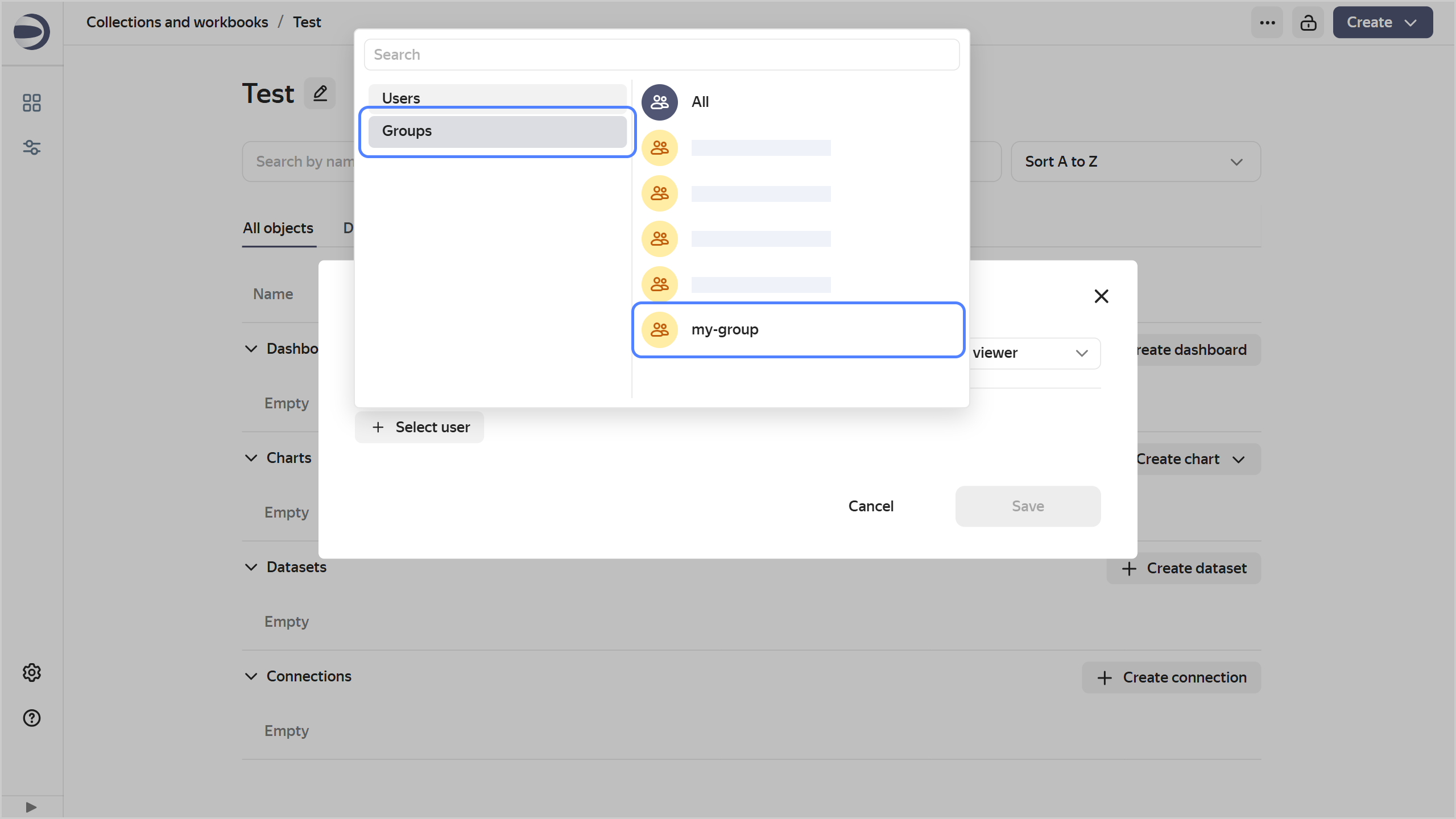
You can change the group’s access permissions, [edit the list of members](#change-member-list), or [delete](#delete-user-groups) the group later.
## Deleting a group {#delete-user-groups}
{% note info %}
If you delete a group, its users will remain, but they will lose object access permissions configured for this group.
{% endnote %}
You can delete a group in the following ways:
* From the group list page:
1. In the navigation panel on the left, click **Service settings** to open settings.
1. Click the **Groups** tab.
1. Click → **Delete group** to the right of the group name.
1. To confirm deletion, click **Delete group**.
* From the group page:
1. Open the [group](#user-groups) you need to delete.
1. Go to the `Overview` tab.
1. At the bottom, click **Delete group**.
1. To confirm deletion, click **Delete group**.